MFA temporary exclusion Tool using SharePoint List and Power Automate

A couple of years ago, when we implemented Multi-Factor Authentication for a client through phased conditional access policies, our primary challenge was handling MFA exclusion requests. This involved validating business justifications and exempting users via an exemption group in the policies. We also had to follow up with users to remove them from the exemption group to ensure compliance.

It wasn’t just manual work, we were also challenged by the Security team. The authority to validate the business case should have been with the Security team, not with the operations. In the initial phases, many people wanted to be exempt from MFA hassles. These exemptions weren’t properly tracked, and even if a ticket was raised, there was no easy way to link it with the action in the audit logs. Furthermore, the project team that implemented MFA wasn’t supposed to handle such requests forever, and neither we nor the security team wanted to give this right to the helpdesk team.

To resolve the situation, we came up with a solution involving SharePoint List and Power Automate, which was able to delegate the task to helpdesk while keeping security team satisfied from compliance perspective and keeping clear correlation between the ticket reference and the action taken.

Step 1: Prepare the sharepoint list

We need to create a SharePoint list which should contain all relevant details which we want to capture from an exemption case from compliance point of view, like Ticket number, pre-approved scenario, user details, date, additional remarks if any.

Default ID field you would leave as such, second field would be a calculated field with the formula as =TEXT(Modified,”mm-dd-yyyy hh:mm:ss”) so that it would keep the timestamp of row creation, then next can be a user picker with allow multiple selection as unchecked and require that this column contains information is checked. Reason can be a choice field in which you would put pre-approved scenarios like below:

  1. Mobile / office phone not available
  2. Change of mobile / office phone
  3. Need to update MFA preference
  4. Campus support request
  5. Others (if others then need to specify the use case and also provide security approval)

Then the last column might be a mult-line field with name as additional remark. Also you can keep attachment field which is available by default as on from show / hide columns.

This list would need to have two levels of access, one as owner, which might be with administrator and then helpdesk can be given contributor access without delete (need to create a custom role and assign it to a group, in which we would add helpdesk user or anyone else who need to be delegated the task to exempt users) on the list so that they can add rows but can not delete rows.

Step 2: Create Power Automate flow

You would need to have an account with Power Automate license and that account needs to have permissions on sharepoint list which we just created and then it should have owner permissions on the exception group, which we would create in Entra ID.

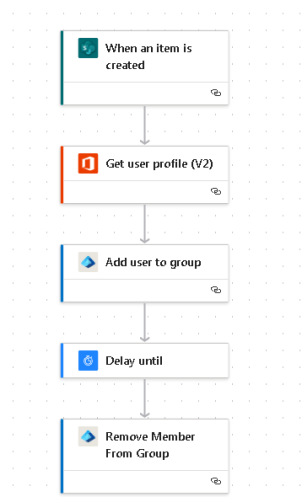
Click on integrate, then Power Automate and then create a flow like below (new UI and old UI)

The trigger would need site address and list name (available from drop down), then in Get User profile (v2), you can put an expression like below

split(triggerOutputs()?['body/UserName/Claims'],'|')[2]

This would pick the userPrincipalname and then you can pass the obtained ID attribute to add user to group, where you need to specify group id manually.

Delay untill block can be a code like to wait for 24 hrs

addHours(utcnow(),24)


Then you add Remove member from group action, which would need to have group id manually specified and then ID obtained from get profile step.

And that’s It. You add a row in sharepoint, it would trigger the flow which would add the user in group, wait for 24 hrs and then would remove the same. Can add another line and it can run in parallel for the same in the same manner if under settings for the first trigger, you have specified concurrency.

Tell me how you find this solution?

Restricting Browsing with Mozilla Firefox for Business Scenario

[tweetmeme source=”mrnitishkumar” only_single=”false”]

Its been long that I kept on thinking over starting a series on System admin tips & tricks that will not only facilitate my colleagues on workplace, but also for people looking out for a systematic dummies\ scratch level info in the same era.  But as these technologies and the way most of the workplaces are, it remained a due always …. from my side..

I already have written a number of dummies posts about some of the important elements related to System administration in corporate scenario like Windows Deployment Services, robust, systematic yet simplest approach over Squid Proxy Server and it reporting and Zabbix Mentoring Server.


Today I am here to share some tips that I learned through a very knowledgeable resource; Locking down Mozilla Firefox Browser …

Why lock down? What are the dangers?

Some might question that why I am talking about locking down Firefox. but my friends in corporate scenario might well understand that some security domains require you to lock things down up to a level that may enable you only to function as much required, not more than that.

Probably a reason that corporate love Microsoft technologies, is giving the administrator proper and well documented controls over the behavior of every aspect of systems throughout the organization via one or a few centralized servers. The method used is group policy; a set of rules which control the working environment of user accounts and computer accounts. Group Policy provides the centralized management and configuration of operating systems, applications and users’ settings in an Active Directory environment.

browser-wars

But as you all know, this is not same with third party apps like Firefox, Chrome or Opera. In fact, Chrome and Opera could be ruled out on Business scenario due to some very know issues and that leaves with Mozilla Firefox that been very stable about speed and various ASP .Net based CRMs (very specially for Linux based dialers). If you have a Dialer Scenario on your workplace (BPOs, IPOs), then sure its a read for you as you know that why to lock down Firefox.

danger

Now, coming over dangers …

You don’t want that the agent sitting with an opened CRM may be able to copy-paste something over somewhere. You might have restricted Notepad, WordPad, Office etc and might have restricted Internet as well, but there will always be ways, as you can’t control elements of Mozilla Firefox like you been able to manage Internet Explorer.

Flaws are many for business scenario .. I am taking count of just three …

  1. If you type c:\ in Firefox’s address bar, then it redirects you to file:///c:/ and displays all the content of C:\ drive. No matters you restricted the drive access from your Domain’s Group policy. It might be scary news for any security admin, but let me tell you, its the same with Opera and Chrome as well.
    Files
  2. You can’t control history setting, auto complete in forms and minor things like that.
  3. You can’t control opening source code of some page as that doesn’t open up in Notepad or something that could have been blocked and opens up in Firefox’s own reader.

What can you do about it? How to start? What practices to be followed?

Before starting, let me tell you one thing. Its not going to be some centralized management like you have in case of Internet Explorer, but you can have your ways, only if you use standard build all over and restrict user rights for installing and even updating anything.

You will create a standard build by installing updated Firefox with required add-ons and then distribute the same folder all over by replacing existing Install folder in program files.


The steps to restricting Access to Local Drives

First install updated Mozilla Firefox somewhere and then perform the following over the same.

  1. Open "c:\program files\mozilla firefox\chrome\browser.jar" in a zip program
  2. Browse to "content\browser" and extract "browser.js"
  3. Open "browser.js" in a text editor
    ( Note Notepad loses the formating, so open "browser.js" in firefox, select all, copy to notepad. >right click on .jar file > open with 7zip)
  4. Go to browser.js and drag it to the desktop. then drag the file from the desktop into firefox to edit (because notepad is crap and screws up the spacings). In Firefox select all and copy the text into notepad, to retain the correct spacing. Edit the file and save the file in notepad as browser.js Now drag that file back into 7zip (the overwrite the browser.js) and click close.
  5. Locate the line "var location = aLocationURI ? aLocationURI.spec : "";" (Applicable to v3.6 only)

    Save "browser.js" and copy back into "browser.jar" in the zip program and save "browser.jar"

    Add (below the above line):

if (location.match(/^file:/) || 
location.match(/^\//) || 
location.match(/^resource:/) ||
(!location.match(/^about:blank/) &&
location.match(/^about:/))) {
loadURI("about:blank");
}

This should now load a blank page when you try to go to a "about:" page, try opening "file/ / /c/" and also "c:"

You can just copy the firefox directory (c:\program files\mozilla firefox) to the machine you want to run it on and create a shortcut it. Also set permissions on the "Mozilla Firefox" directory for students as allow "Read & Execute", "List Folder contents" and "Read" only.

Note: There are options to control Firefox more closely via C:\program Files\Mozilla Firefox\defaults\profile\chrome\userChrome.css, but as I am not able to get them working exactly in way I want to, so not posting about that right now. Will post sometimes later on.


Programming ASP .Pages or other web pages in secure ways

So, you have solved the biggest trouble, access to local drives, now what about copy paste and viewing Source Code?

Might cause some frustration among end users, but if you are really that serious about security then the option is to restrict usages on Ctrl, Right Click keys on page and also Copy/Cut/ Paste options.

Two ways to do the same..

ASP .Net way – Use the following code on your ASP Page to restrict copy/ cut/paste/ right click

<asp:TextBox ID="TextBox1" runat="server"

oncopy="return false"

onpaste="return false"

oncut="return false"

oncontextmenu="return false;">

</asp:TextBox>

JavaScript way – For people familiar with JavaScript, this is the another way and this also gives the user a pop-up message if he\she did pressed the restricted keys\ key combination.

<head runat="server"> <title>Untitled Page</title>

<script language="javascript"> function DisableRightClick(event){

//For mouse right click

if (event.button==2){ alert("Right Clicking not allowed!"); }}

function DisableCtrlKey(e){ var code = (document.all) ? event.keyCode:e.which;

var message = "Ctrl key functionality is disabled!";

// look for CTRL key press

if (parseInt(code)==17){ alert(message); window.event.returnValue = false; }}

</script></head>

Note: you can place this function to MASTER PAGE, if we want this into many different pages. Now we have to call this function into our pages, using this coding

<body><form id="form1" runat="server">

<div><strong>Right click disabled</strong> textbox<br />

<asp:TextBox ID="TextBoxCopy" runat="server"

onMouseDown="DisableRightClick(event)"> </asp:TextBox><br />

<br /> <strong>Ctrl key </strong>disabled<br />

<asp:TextBox ID="TextBox2" runat="server"

onKeyDown="return DisableCtrlKey(event)">

</asp:TextBox><br /><br />


So, this was for now.. I will be updating more, once I test more methods to restrict the Firefox security options. Note that any update to Firefox will wipe of any changes you made to browser.jar, so its dead essential that you ensure that user might not have permissions to update Firefox. Watch out for security rights as well.

photo of Nitish KumarNitish Kumar

Now you can read updates from this blog delivered directly to your Nokia Smart Phone, download it here

Digg This