

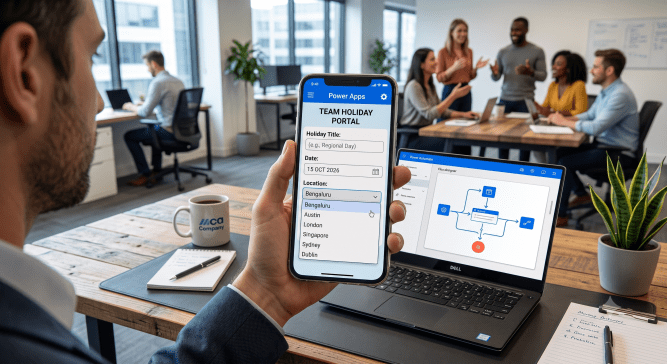
If you manage a team spread across multiple locations or office hubs, you already know the pain: Public Holiday Administration.
Use case: As part of various automation initiatives, we create multiple flows to automatically handle assignments and to avoid assignments on leave days, team members put their leave entries in the holiday calendar (SharePoint list as calendar). But every time a regional holiday comes up, someone has to log in and manually update calendar entries or regional trackers for every single employee in that base location. It’s repetitive, tedious, and frankly, a waste of time.
Enough of the manual entry. I built a quick, mobile-friendly solution using Power Apps and Power Automate that handles bulk holiday creation in seconds – right from my phone.
Here is how I built it, how it works, and how you can set it up for your own team.
💡 The Lightbulb Idea
I wanted a simple workflow with three specific goals:
- Dynamic Locations: Automatically fetch employee base locations so I never have to hardcode office locations.
- Flexibility: Allow me to target a single location (e.g., just the Bengaluru or London team) OR bulk-apply a holiday across all locations simultaneously if no specific office is chosen.
- Mobile-First GUI: Trigger the entire process from a clean interface on Microsoft Teams mobile while I’m on the go.
🛠️ The Architecture: How It Fits Together
The setup uses 3 pillars: Microsoft SharePoint and two core tools in the Microsoft Power Platform working seamlessly together.
- Power Apps (Mobile Screen)
- Power Automate Cloud Flow
- SharePoint Lists for Team Details and Calendar
🔧 Step 1: Preparing the Data Sources
I used two SharePoint lists (you could also use Dataverse or Excel tables):
Team_DetailsList: Holds employee profiles with columns for Name, Email, and Base Location (e.g., Bengaluru, Mumbai, Pune).Holiday CalendarList: The destination list where individual holiday entries are logged per team member. Minimum column used would be Title, Start, End, HolidayType, ResourceName and its location as lookup columns fetched from Team_Details list to avoid typos.
⚡ Step 2: Building the Power Automate Flow

Create an Instant Cloud Flow triggered by Power Apps (V2).
1. Flow Trigger & Parameters
Set up the following input parameters in the Power Apps trigger:
HolidayTitle(Text)HolidayDate(Text / Date)BaseLocation(Text)
2. Filter Team Members
Add a Get items action for the Team Details list.
Apply an OData Filter Query to handle conditional location selection:
- If a specific location is provided: Filter by that location.
- If “All Locations” or empty is passed: Retrieve all team members.
3. Create Bulk Entries
Add an Apply to each control using the output body from the Get items step:
- Inside the loop, add a Create item action targeting the
Holiday Calendarlist after filtering for scenario if already there is an entry for that particular resource. - Map the
Title,Holiday Date, andEmployee Email/Namefrom the current item in the loop.
⚡ Step 3: Building the Power App
To make this super easy to run from Microsoft Teams on mobile, I designed a minimal GUI screen. Instead of manually typing location options in a dropdown, I used the Distinct() function to pull unique base locations straight from the Team Details list.
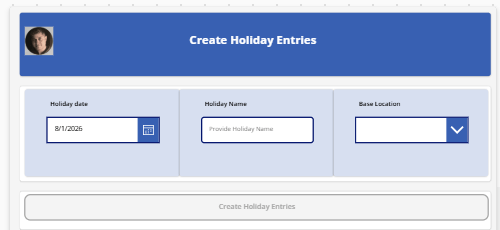
GUI elements might be subjective, but the idea was to have a header and then 3 core input elements: Holiday date, Holiday Name and Base Location.
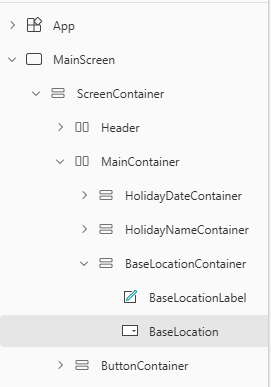
The main screen would have one container, Screen Container which they would have 3 sub-containers: Header, MainContainer and ButtonContainer. This is to ensure that it works across different screens, be it web or mobile.
Header container would have a logo and title for the screen, while Main Container would have 3 horizontal column layout to have one input label and one actual input box each vertically and then at the end, Button Container is separate to keep the button in center of the screen.
Other caution is about width and height of the individual elements. Rather than using absolute values, one need to use it like Parent.Width – 80 to ensure that it’s always relative to screen.
Rather than putting all locations manually in dropdown, I chose to add the Team_Details list as a Data Source for the PowerApps and use the below code for items attribute on the drop-down.
Distinct(Team_Details,'Base Location')
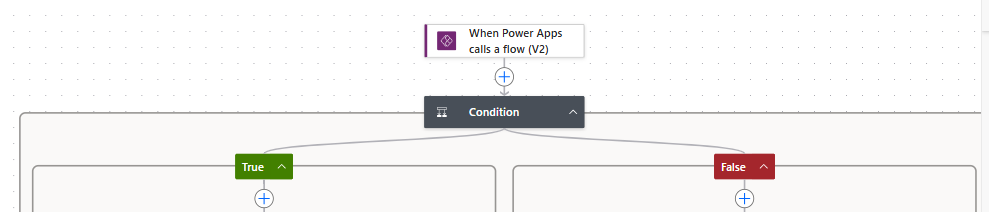
For attaching the flow with action button, you need to click on 3 dots on left in Power Apps screen and then select Power Automate flow from there. Remember your flow would be shown only if you used When Power Apps calls a flow (v2) as trigger (like below).
The action button is greyed out unless Holiday date and Holiday name inputs have some values. The same is not applied on Base Location as the same is kept as optional. If no base location chosen, this would mean that it’s expected to create entry for all employees across locations.
To accomplish that I used DisplayMode property of the action button and put the below code
If(IsBlank(HolidayDate.SelectedDate) Or IsBlank(HolidayName.Text),DisplayMode.Disabled, DisplayMode.Edit)
For action as well as visual notification for debug reasons, I used below code in OnSelect property of the action button
Notify("Submitted: HolidayDate = " & Text(HolidayDate.SelectedDate, "yyyy-mm-dd") & " | Holiday name = " & HolidayName.Text & " | Base Location = " & Coalesce(BaseLocation.Selected.Value,"All Locations"));'HolidayEntryCreator'.Run(Text(HolidayDate.SelectedDate, "yyyy-mm-dd"),HolidayName.Text, Coalesce(BaseLocation.Selected.Value,"All Locations"))
Coalesce function is used to ensure that if drop down is not touched and null is supplied since I have set Default property of drop-down as Blank(), it would take All Locations as input.
Once everything is done, then the app can be shared to teams.
🎉 The Result

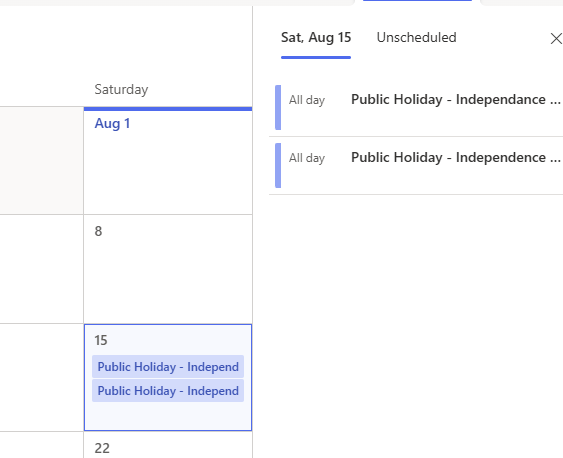
What used to take 15–20 minutes of manual copy-pasting now takes 5 seconds on my phone while grabbing a cup of coffee.
- No missed team members.
- No location typos.
- Zero manual list editing.
If you’re still managing team availability or regional holidays manually, I highly recommend giving a lightweight Power Apps + Power Automate setup a shot!
What admin tasks are you trying to automate for your team lately? Drop your thoughts or questions in the comments!

