Google Wave: Finally I am introduced with it

Google wave; the all big buzz and I was failing to reach it as I was lazy enough in the start, when it was first declared long back. Yes as per wiki, Google wave was first declared really long back in the Google I/O conference on May 28, 2009.

wave

I went after it, only when my brother Dewashish asked me for an invite to Google Wave. I tried to know the definition and my search ended over the wiki

It’s a communications protocol designed to merge e-mail, instant messaging, wikis, and social networking. It has a strong collaborative and real-time focus supported by extensions that can provide, for example, spelling/grammar checking, automated translation among 40 languages, and numerous other extensions. Initially released only to developers, a "preview release" of Google Wave was extended to nearly 1 million users beginning September 30, 2009, with the initial 100,000 users each allowed to invite from twenty to thirty additional users.

I tried to digg little bit more deeper and got one more line Google Wave is designed as a new Internet communications platform. It is written in Java using OpenJDK and its web interface uses the Google Web Toolkit. (Same GWT behind new interface of Orkut).

Ok! I am leaving all these lines from external sources and coming up from my own. For me, its something like Google’s implementation of Wiki. As Google says, its a hosted XML Document: the wave, which could be edited by any of the person involved in the conversation.

I would like to present my first Google Wave conversation with the person, from whom I got the invite. May be you all get some idea of my learning about this in raw….


Sachin: Hey, Nitish, So You got the invitation!

Let me know your experience.

Me: Yes I got it and trying to know exactly what this is?

The experience is nice till now and as much I got to know then its not an email tool, but could be said as Google’s implementation of Wiki. If you understand that what wiki is then you could understand that what Google wave is and what Google is trying to achieve with it.

Sachin: This is new email tool, cannot understand yet, once we get more and more people involved may be we will get to know the utilization. There are lots of things, We can use lots of social networking things. but definitely start ….

Me: hold it for a second, I want to object. Although Google’s definition says that it has something to do with Social Networking, I will strongly object. Its not another Orkut or facebook or MySpace. Its more like Wiki. Your conversations are an Open XML shared Document, which anyone involved could edit and the editing would be completely logged and visibly real time.

Wiki was a Document which anyone could edit, it was a concept which was earlier much opposed that such an information would not be reliable as anyone could edit in wrong ways, but later on over years, as Wiki got success it was proved that if one could edit it for wrong then more people could edit it for right ways as well and so Wiki worked and worked in such a tremendous ways that now they are kind of most reliable source of information for everyone.

I guess Google wave is something like that. A fully rich document (pictures, links, ppts, videos and all type of rich media you know), in which Google is making full use of Google Docs and its strength of real time communication. Now people join in .. have their documents online and these documents will be shared over the users participating the conversation and such document will move online to become some dynamic source of information

People knowing Team Softwares and Wiki will get a true idea about what Google wave.

Sachin: I am looking for more like corporate communication through google wave. What do you think?

Me: Yeah … you are heading in exactly right direction… first use will be sure Corporate communication, and specially software developers or project handlers as corporate is already using some of such things, and could relate this faster than others.

Main target is to create collaborative documents, which will hold dynamically changing information from more than one sources, which will be edited to suit with the facts more and more and will come up with an ultimate information source.

I would recommend all of you to go through the tech crunch article for the details. Wonderfully detailed article about Google wave.

I also came to know about a few books over the same topic Google Wave and the leading one, which is online for free is http://completewaveguide.com/

I gone through a few of the pages and found them short enough to keep the interest and info. Take a look.

The other books, which I am aggressively looking for, are books from O’reilly publication with the title Google Wave: Up and Running and Getting Started with Google Wave. Although till now, no luck in finding a free copy of the same.

I managed to find somehow a PDF calling itself as Google Wave for Dummies. I guess, its the same arranged PDF version of the Completewaveguide. Could take a look over the PDF Book for the best info available for my side.

updates: 6th December 2009 

After many days of receiving invite, now from 2:38 PM of today, I also got the power to invite 8 more and I have started using the same. 🙂

Google wave invite

del.icio.us Tags:


Other related links:

http://mashable.com/2009/11/14/google-wave-use-cases/

http://en.wikipedia.org/wiki/Google_Wave

Tech Crunch Article


New Lighter and Faster Orkut

Have you got your invitation yet? Few days back, we were hearing the same about Google Wave and now we are hearing the same about New Orkut. Luckily getting to new version of orkut wasn’t that tougher as getting hands on Google Wave seems to be. In the ads, it was asked to join the community to get an invitation, although I didn’t liked the idea very much to join a community for sake of just getting an invitation, which in turns finally I didn’t got from.

Although the community started from 12th October 2009 to build up interest for New Version of Orkut, The Brand New Version of Orkut was officially launched by 28th October 2009.

As we can see that it’s completely rebuilt interface with heavy use of ajax everywhere and as their official blog says for building it they have make use of Google Web Toolkit (GWT) throughout. With what they been successful is bringing most of the things integrated on the first page itself, either its community handling, friends management, scraps, photos or anything else. I was very much impressed with Photos handling obviously, which is now at par with Facebook or other such sites. The interface to handle photos is very intuitive and blazing faster than the earlier version.

As other bloggers pointed out, here are some new features:

1. Added scroll bar for Communities & Friends List
2. Ajax color changer added for profile wrapper
3. Accepting members to the communities done with ajax, you can accept many people. at once
4. Accepting friends request done with ajax. you still have to accept individually.
5. Recent visitors and recent birthdays shown with profile picture. (Little anoying)
6. Icons changed for chat availability status.
7. Adding comments to status updates of friends.
8. Drop down CSS menu made for different tabs like profile, photos & videos.
9. More updates load below with ajax loader.
10. Link to other google services added on top.
11. Drop down menu added to orkut logo (useless)
12. Friends suggestions are in ajax ring like loading
13. Manage button added to friends & communities link.
14. Basic formatting options added to scraps with google chat smileys. (A warm new feature for all).

Although I still remember Orkut’s early days when the focus was to keep the interface simple and specially that blue throughout and I’m sure that many of us, will keep missing that simplest interface, which made us Orkut go higher places in comparison of Facebook or MySpace. But like technology is spreading and improving, changes are likely to touch the lives from every side and such an overhauling of Orkut interface was expected from long. So is this U-Turn from keep it simple and blue philosophy.

The new interface is sure useful in many senses for the users addicted to Orkut, but I also wish to point out that it might not be that easy or attractive for the new users coming into it. For new users, its just the same like MySpace or Facebook and I am not sure that you could win new users from there. Let’s see, how this new version proceeds.

Suppose you got the invitation for The New Orkut but after playing with the new interface for few hours, you want to go to the old version of Orkut then you can do it by following instructions.

“How To Get the Older Version Back in The New Orkut?”

You will switch back to the older version of the Orkut by going at the “older version” option in the top right corner of the new Orkut interface. Click on it and you will back into the old Orkut world. Simply click on the link “try the new Orkut”, in the top navigation bar, if you want to go into the New Orkut.


If we talk about users opinions, then not to mention only few bloggers, but I didn’t found much of a positive buzz about this around friends. Few of them commented about missing features and most of them commented that they were used to of earlier version and this new interface will take time to adjust with. I guess, its like shifting from Windows XP interface to Windows 7. We may feel it better, but find no reasons to change. 🙂 So tell me after your experience about which version of Orkut is better, the old one or the new one?

WDS Client Reboot Issue

Please refer to my detailed article. Most of the time, this issue will come due to insufficient RAM (less than 512 Mb) in WDS Client.

To all people starting with WDS, I really really want to warn in LOUD that please do care about RAM requirements as WDS could run if RAM is lesser in Server side, but it can’t if client is having less than 512 MB RAM. Now, after noticing this issue, I am finding that most of the issues, while implementation phase came for this single reason only.

Another thing, which I noticed is that any of the image, boot.vim or WinPE.vim could be used to capture or deploy, the objective of keep two images in the menu, make the two tasks seperate; One capturing image and second deploying image. With two images in menu, both the tasks may go together in production.

I also noticed that even if you might have created image for someone other HAL, sometimes it might work for other HAL (for me HP DX2280 image worked for IBM ThinkCenter), although drivers will still be missing. I thought one go around that collect RAW network drivers of all kind of machines you have (or as many network drivers, you can collect) in one folder and keep this folder in C:\ drive of every machine, you are going to image. It wont take many of Mbs, but will be handy, if you don’t have exact image, but a working image. At least you will easily get a network enabled, necessary software containing workstation, in which rest of the drivers could be filled.

MTNL Trump 3G Jadoo Card Experience

[tweetmeme source=”mrnitishkumar” only_single=”false”]

Add to Google Buzz

Update: For people looking for better rate for data usages, there are many available plans out in Delhi region. As per my view, there are three, which should suit people in the following ways:

  1. People with occasional usages:  Rs. 450/- for 1 Gb
  2. People with good usages: Rs. 1500/- for 15 Gb Currently not available
  3. People with high usages: Rs. 2500/- for Unlimited usages 

Like Chandan said in its Review over MTNL 3G, even I was not having a positive feeling about PSU Telecom Products. Although I have seen like my colleague B. S. Negi said what goes with Government Product that once set to work, they will work flawlessly, although you have to wait endlessly in case any fault occurs in the same.

I have used BSNL Dialup in Azamgarh, BSNL Broadband in Allahabad, Idea Internet (GPRS, PC) in Azamgarh, New Delhi, Mumbai, Varanasi etc., Aircel (GPRS, PC) in New Delhi and I could say that I got BSNL Broadband and Idea only good enough to rely on till now. Till now, I was on Idea Internet, even after they raised prices (earlier it was 5 Rs. per day for Unlimited Use and now its 20 Rs. per day for Unlimited Use) as its the best option, if you have edge in your area. All other options are more costly, if you are a heavy user.

Anyway, I was writing over MTNL 3G. I bought it from a local shop as the MTNL guy didn’t showed up for 2 days and then it was a total one day wait for getting the SIM activated. The excuse was server problem. Pretty funny!!! for the company giving first 3G for connectivity. 🙂

Initial reception was good and I was able to get around 350 kbps download speed and relatively poor upload speed of about 50-70 kbps on my cell. Although still remained was connecting it to PC. After searching over Internet, I got Chandan’s link and it resolved the issue. The solution was to use Nokia PC Suit and choosing to configure connection manually and putting pps3g as access point and leaving all other fields blank.

airtel test Firstspeedtest

For the people, not using Nokia PC Suit, I found another get around.

Go to Control Panel, then Modem, Choose modem and put [at+cgdcont=1,"ip","pps3g"] without brackets, then simply create a dialup in known way and you are set to go.

What I am still feeling trouble here is the UMTS network reception in my room. I get all network line or most of them, but still I guess, I am not getting proper network with MTNL UTS here. If I put it in UMTS only mode, then I could actually see when 3G network is dipping. That’s causing one more issue heating up my cell as Network is constantly interchanging or discovering mode. These trouble are holding me to recharge the cell for unlimited data plan which is costing Rs. 2500/- per month, although other options are available like Rs. 250 for 0.5 GB and Rs. 450/- for 1GB.

Although for the users who want to go for it and searching that whether it will work in their area or not. Here is the 3G Map provided by MTNL Delhi

map_3gAlthough still I get the famous Error 734: The PPP link control protocol was terminated (Thanks to poor network reception in my room) while connecting to internet. This is an error from Server Side, if you are not getting proper network reception. With this error, I guess you can’t do anything about except waiting to get it resolved on your own or restarting your cell again and again 😦

Relieved from the above mention error after changing the area. Now, if I face any trouble then I check the balance. It has been happen sometimes that services might be down, but seems to be stable than early days now.

photo of Nitish KumarNitish Kumar 


Add to FacebookAdd to DiggAdd to Del.icio.usAdd to StumbleuponAdd to RedditAdd to BlinklistAdd to TwitterAdd to TechnoratiAdd to Yahoo BuzzAdd to Newsvine

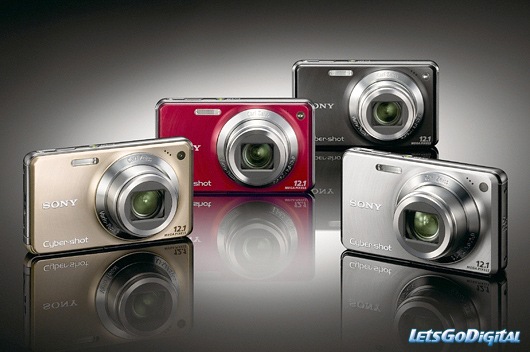
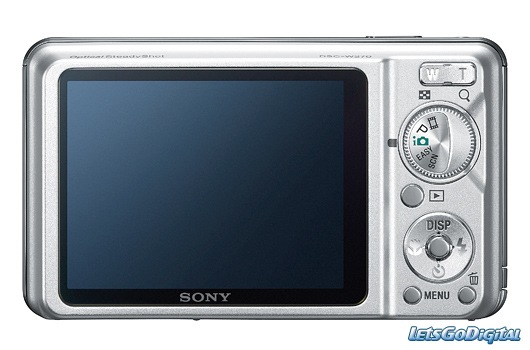
Sony Cybershot DSC-W270

Finally without waiting for long or researching harder, I gave my verdict for Sony Cybershot DSC-W270. Although still there are other cameras out there, which could prove them more worth of money, but probably HD Recording and 4GB Memory Card package deal worked for me.I bought it from Ankur Electronics, Cross River Mall. I didn’t gained any bargain price after visiting three different shops and so it remained on Rs. 15, 800/- INR …… a costly one.

sony-w270 dsc-w270

I haven’t taken shots from this camera yet and probably will give it a shot by tommorow, but have seen the videos taken by it of few seconds and found that really impressive. Also liked the way, it is responding after pushing the ON switch.

Here is a video review of the same, I found from Youtube, hope will give you some ideas.


Windows Deployment Services : Finally done

[tweetmeme source=”mrnitishkumar” only_single=”false”]

Add to Google Buzz

Sometimes, the most difficult things look easy, when they get finished. For me Windows Deployment Services was almost joined in the unfortunate list with TCExam; things, which irritated me a lot, while I was trying to learn them. I really remember the day, when I deployed RIS and it really taken lots of R-n-D to handle network drivers and also many manual entries as well. But it was done and then we moved with it pretty well for a while. The recent challenge arrived, when I was to deploy WDS from entirely scratch and that too within a timeline along with my all other works. The requirement was to create a kind of locked up image having necessary software/ drivers along with many vulnerable and un-necessary services disabled. I was to use Windows Deployment Services for the same.

WDS been a straight improvement over RIS in the same way as WSUS has been over SUS. Either its been image management or driver compatibility or speed or be it space requirements. Its one step ahead in every way. But unfortunately, it troubled me a lot due to minor things.

Initially I was much troubled with the network driver injection thing as I started with Riprep (like RIS days) and it refused to take every possible way to get it done. The issue was kind of more highlighted due to much time taken in experiments due to lesser RAM.

After giving up with all RIS things, I finally started from scratch with help of following article. The basics were requiring simply sysprep an Ideal System and use the image as install image and in addition, to inject network drivers in boot image via imagex from Widnows AIK. But after sysprep, my Image PCs will not getting started and were in continuous reboot cycle.

Much later, finally somehow, I pinpointed the trouble and it seemed to do something with disabling services; specially Telephony Services. I prepared an updated system along with required software/ drivers without disabling any services and then sysprep it and it worked. 🙂

Here I am going to give all the steps, whcih worked for me in the end (from Lucius Craig blog).

Step 1 – Installing WDS on your Windows 2003 Server SP2

  • Logon to the Server with Domain Administrator rights
  • Navigate to the control panel and click Add/Remove Programs
  • Click Add/Remove Windows Components
  • Scroll down and check Windows Deployment Services
  • Click Next and Finish (once installed WDS can be found under Administrative Tasks)

Step 2 – Configure Windows Deployment Services

  • Navigate to Start > All Programs > Administrative Tools > Windows Deployment Services (WDS MMC should appear)
  • Expand Server and right click [sever name] and click Configure Server
  • Click Next to start the Wizard
  • Check the Path if needed (I used D:\Remoteinstall because of disk space on system drive C:)
  • If you have DHCP Server on the same server, then For DHCP Options 60 Check both “Do not listen on Port 67″ and “Configure DHCP option 60 to “PXE Client” and Click Next. If not then leave it as it is.
  • For PXE Server Initial Settings select “Respond to all (known and unknown) client computers” and click Finish

Step 3 – Install OS and all needed Applications (excluding Windows Media Player 11)

  • Enable network boot option in BIOS 
  • Install Operating System – In my case I installed a Volume Copy of Windows XP Professional SP2
  • Join to the Domain and install needed Application and Updates
  • Remove from Domain

Step 4 – Setup Boot Image in WDS

  • Create a folder on the sever to copy two WIM files to (WinPE.WIM and Boot.WIM)
  • Insert a Vista Business DVD in to the DVD-ROM drive and browse the Disk for a file called Boot.WIM and copy to folder recently created folder
  • Navigate to Program Files\Windows AIK\Tools\PETools\x86\WinPE.WIM and Copy to recently created folder
  • Now I opened up WDS expanded Server and right clicked the Boot Image Folder and Clicked Add Image
  • Browsed to Boot.WIM  and click OK
  • Repeated for WinPE.WIM and click OK
  • Next, In WDS I right clicked WinPE and Clicked Capture Image
  • Finally, In WDS I created a Master Image Group called “Windows XP Image”

Step 5 – Sysprep the Master Image

  • To Run the sysprep I inserted the XP Professional SP2 Disk and Browsed to the deploy.cab file (in my case it was D:\Support\Tools\Deploy.cab)
  • I used WinZip to extract the Deploy.cab file to a new folder I created called sysprep (C:\sysprep
  • Navigate to the C:\sysprep folder and launch setupmgr.exe
  • Click Next to Start the Wizard
  • Select “Create new” and click Next to continue
  • Select “Sysprep setup” and click Next to continue
  • Selct “Windows XP Professional” and click Next to continue
  • Select “No,do not fully automate this installation” and click Next to continue
  • For Gernerl Settings enter the Name and Organization, Display Settings (default), enter the Time Zone applicable and then enter the Product Key
  • For Network Settings select “Automatically generate computer name, Select “Use the following Administrator password (127 characters maximum ; case-sensitive” and enter local administrator password and confirm. Select Typical settings and finally select Workgroup.
  • For Advanced Settings specify Country or region, enter area code, Regional Settings select “Specify regional settings in the answerfile” and check ”Customize the default regional settings” Click Custom and verify and enter sysprep Identification String (example Windows XP Deployment for HP DX2480)
  • Click Finish and OK
  • Click Cancel to Close Setup Manager ( This is an annoying microsoft glitch)
  • Now runs Sysprep by navigating back to c:\sysprep and launch sysprep.exe
  • Click OK to Continue
  • The System Preparation Tool 2.0 windows should appear. Check “Use Mini-Setup and then Click Factory
  • Once PC shuts down press the power button to restart the PC (PC will take some time to reboot)
  • Once at the Desktop Click Reseal and OK to Shutdown the PC
  • PC should Shutdown (do not boot to windows you need to PXE boot and capture the image
  • Sysprep is Complete

Step 6 – Create Master Image for WDS

  • Boot up the PC that you want to image and press F12 to enter Boot Menu
  • Select Onboard Network Controller and press Enter
  • Press F12 again to Boot from network
  • Select Windows Vista PE (x86) and press Enter
  • From the command prompt type wdscapture.exe
  • Click Next to start the WDS Image Capture Wizard
  • In the Image Capture Source use the dropdown to select the volume to capture (in my case it was C:\) and enter an Image Name and Image Description. Once complete click Next
  • In the Image Capture Destination you will need to browse to a local Destination ( I had problems finding the WDS server when I checked “Upload image to WDS server:”)
  • Click Finish to begin capturing Image
  • Once I had the Image I restarted the Master-Image PC and Join to Domain
  • I copied the image file to a local directory on the WDS server
  • Once complete I opened WDS and expanded Servers> [Server Name] > Install Image
  • Right Click Install Image Group and Select  Add Install Image
  • Browse to the Image and Click OK to upload the Image to WDS

Step 7 – Image New PC

  • Press F2 to access the BIOS and make sure that PXEboot is enabled on the NIC
  • Press F12 to access the Boot Menu
  • Select “Onboard Network Controller
  • After DHCP issues IP address press F12 to continue
  • Select “Microsoft WindowsVista PE (x86)” and press Enter
  • Once wpeinit launches type the following:
    • Diskpart
    • Select disk 0
    • Clean
    • Exit
  • Type exit to let system restart
  • Press F12 and Boot from Onboard Network Controller
  • Press F12 to continue
  • Select “Microsoft Windows Longhorn setup (x86)” and press enter
  • Click Next to start the WDS wizard
  • Enter the domain administrator’s credentials and click OK
  • Highlight the Master Image and Click Next
  • Highlight Disk0 and Click Next – Installation will begin
  • After PC reboots the windows setup should appear click Next to begin
  • Select “Yes, I accept” to click Next
  • Enter the product Key and click Next
  • Enter Computer Name and click Next
  • Enter and confirm the local administrator password and click Next
  • Select No, don’t make this computer part of a domain and click Next
  • Click skip and slect No, not at this time and click Next
  • Click Finish
  • Once PC reboot confirm that you can logon to the desktop as a local administrator
  • Reboot in to the BIOS and disable Network PXE

You will be happy to know that its actually taking less than 30 mins to install a full image of Windows Professional Service Pack 3 along with all updates till 1st November 2009. 🙂 Here is a short video:

Issues:

PROBLEM: Not able to PXE Boot to WDS – “WdsClient: An Error occurred while starting networking: a matching network card driver was not hound in this image. Please have your Administrator add the Network driver for this machine to the Windows PE image on the Windows Deployment Services server.”

CAUSE: Boot Image missing network driver

RESOLUTION: Need to inject the network driver in the Windows PE image. I used the procedures at James Bannan’s article as given below:

PROBLEM: Not able to capture second image

CAUSE: Till now, I am not sure that what causes this.

Solution: In place of using WINPE image for capturing boot image, I used Longhorn one (modified with drivers in it and it started capturing the image to local drive (not tried for uploading to WDS directly, as it don’t work most of the time, coz don’t get IP Address or network card don’t get initialize due to same network driver issue)

PROBLEM: WinPE quiting with giving blank Error msg with OK

CAUSE: Somehow I came to figure out and the reason was simple, lesser ram. WinPE requires at least 512 MB of RAM, which means you need to have at least 512 MB RAM in PC, you are going to install Windows XP by WDS.

Solution: Although I come to read that this 512 MB check could be bypassed, if you are using unattended installation, then it is told to be solved by changing one entry in xml file, but as I have not got it succeed in my case, so can’t comment much on it.

https://nitishkumar.wordpress.com/2009/11/13/wds-client-reboot-issue/


Although its not a bug, but as pointed out by GuillaumeD’s blog, I got to know that  it could be trouble, if your default installation is not in \Windows Folder. Although most of us will not bother about such a situation as there might be more and more obvious issues, but still I would like to put the solution found by the author.

To provide to wdscapture.exe the folder name of your installation, you have to modify the wdscapture.inf located in the \Windows\System32 of the WDS Capture wim file.

  1. Imagex /mountrw X:\RemoteInstall\boot\x86\Images\wdscapture.wim 1 E:\Mount
    X: represents the volume on which the WDS system folder is stored
    E:\Mount is a temporary empty folder used to mount the WIM file
    x86 represents the target architecture of the WDS Capture wim
  2. Edit the file e:\mount\Windows\System32\wdscapture.inf
  3. Modify the value of SystemRoot :
    SystemRoot=W2k3
  4. Close the file wdscapture.inf (save the changes !)
  5. Unmount the WDS Capture wim : Imagex /unmount E:\mount /commit

How to use the available tools to modify Windows PE-based boot images:


This is a pretty important issue, because Windows PE is also used for the Windows Distribution System (WDS), Microsoft’s new software for deploying Vista across a large number of PCs via a network. Since WDS, by its nature, must work across various hardware platforms, it probably needs more drivers than the smallish set that comes with it.

Here’s how to get around the problem.

HOW TO: Inject Drivers into Windows PE 2.0

This tutorial assumes that you’re running Windows Deployment Services and want to update the default BOOT.WIM file to enhance platform compatibility, but the processes for injecting extra drivers into a WIM file are exactly the same for ANY WIM-based image.

You’ll need a full install of the WAIK, as it contains the necessary tools to manage WIM files. Note that its a download of more than 1GB. This can be done on any system, but if you’re running WDS it will install properly on the WDS server. Insert the DVD and select “Windows AIK Setup” and install WAIK.

WAIK InstallWAIK Install

Next you’ll need to create a folder to easily modify BOOT.WIM. I found it easiest to create a Temp folder, and then two more folders within that called Mount and Drivers. Then copy BOOT.WIM from the Vista DVD to the TEMP folder and rename it CUSTOMBOOT.WIM.

Now download the drivers you need, and extract them to \Temp\Drivers.

You’re not after DOS drivers – remember that this is Windows PE 2.0 so XP drivers are the best ones to use (or Windows Vista, if they’re available).

WinRAR is a great tool for extracting the contents of an EXE while maintaining the folder structure – this is very important as you need to be able to get at the INF driver files.

Once that’s done, go to the Start Menu, Microsoft Windows AIK, Windows PE Tools Command Prompt. This loads a command window with the PE tools IMAGEX, PEIMG and OSCDIMG loaded into the path, which makes life much easier.

PE Tools Command PromptPE Tools Command Prompt

Navigate to \Temp and type in:

imagex /info DRIVE:\Temp\customboot.wim

Where DRIVE is the appropriate drive letter. This checks the CUSTOMBOOT.WIM file and lists the images contained within it.

ImageX InfoImageX Info

There are actually two images, but the one we want is the Longhorn Setup image – number 2. Now type in:
imagex /mountrw DRIVE:\Temp\customboot.wim 2 DRIVE:\Temp\Mount


This mounts image 2 of CUSTOMBOOT.WIM into the \Temp\Mount folder in read/write mode. You can navigate to this folder and browse the contents and make any changes you like.

PE Tools - Mount ImagePE Tools – Mount Image

Now go back to the command window and type in:
peimg /inf=DRIVE:\Temp\Driver\FOLDER\*.inf /image=DRIVE:\Temp\Mount


Where FOLDER is the appropriate folder which contains the INF driver files. This injects the drivers straight into the mounted image. You can manually specify which driver is to be installed, or just use the wildcard to install all the drivers found in that folder. Repeat this process for all the drivers you want to install.

Once that’s done, type in:
imagex /unmount /commit DRIVE:\Temp\Mount
This unmounts the image from the \Temp\Mount folder and commits the changes you made. Do NOT forget the /commit statement or you’ll have to do the whole thing all over again. Not fun.

Now go back to the WDS console and right-click on the boot image, then select Disable. Right-click again and select Replace Image, then browse to \Temp\CUSTOMBOOT.WIM. This will replace the contents of BOOT.WIM with the updated CUSTOMBOOT.WIM. It doesn’t erase BOOT.WIM, and the boot image will still use the original file, but the extra drivers are now loaded into the Longhorn Setup image. Being able to replace the image means that you can maintain an offline master boot image, so you never need to directly work with the WDS boot image.

Unlike RIS where any such change required a restart of the service, WDS accepts this change on the fly. Connect your clients to the WDS server and they will use the updated setup image with the incorporated drivers.

At the end, I really want to thank Lucius Craig and James Bannan for their invaluable resources, which I am sharing with others now.

Cheers! WDS is ready to run now.  

Also check Rathenkomputindo’s Weblog. Could be very useful, if you are looking for screenshots.

photo of Nitish KumarNitish Kumar

Add to FacebookAdd to DiggAdd to Del.icio.usAdd to StumbleuponAdd to RedditAdd to BlinklistAdd to TwitterAdd to TechnoratiAdd to Yahoo BuzzAdd to Newsvine

Opera Mobile 10 Beta for Smart phones: I gonna love it
Today when I was Googling about 3G capabilities of Nokia N82 and meanwhile checked the same over GSMArena, then I came across the article over Opera Mobile 10 Beta.

As I was using Opera Mini earlier and also Earlier Beta Versions since I owned Nokia N82, so it was definitely going to interest me. It really surprised me when I got to know about the download size of the same. Can you believe? Mobile download of 4 Mb? Insane …

But after installing it, I got to know that it really worth it (provided you got a good mobile like N82 or some other higher end one). Its really snappy, its really smooth and its really really rich.

Extracts from the press release:

“Opera Software today unveiled the beta of Opera Mobile 10 for Symbian/S60 handsets. Most notable in the new Opera Mobile 10 beta is a sleek design, which Opera first introduced to the world in the recent release of Opera Mini 5 beta. The crisp, new look introduces the Speed Dial, tabbed browsing and the always convenient password manager to Opera Mobile. Opera Mobile 10 beta is optimized for both touchscreen and keypad-style navigation.”

Performance was prioritized in this beta. It is twice as fast as the previous Opera Mobile released for Symbian/S60, and users will discover significant speed improvement when downloading pages, zooming and panning. Opera Turbo is also integrated, saving end users both time and money with its server-side compression technology. 

Opera Mobile 10 beta is available for Nokia, Sony Ericsson and Samsung smartphones running Symbian/S60, 3rd and 5th editions.

The beta is free to download to your computer from http://www.opera.com/mobile/next/ or directly to your mobile phone from http://m.opera.com/mobile. 

gsmarena_006 gsmarena_007gsmarena_001gsmarena_005

gsmarena_008 gsmarena_009

gsmarena_004 gsmarena_003

I was really wishing some browser with which I could totally enjoy all features of Orkut or could check my wordpress blog admin pages or could look for many more other exciting things and I guess I got it with Opera Mobile Beta 10.

“The next thing, I am looking for is a new MTNL SIM with 3G for browsing experience over more than 500 kbps at least (as I heard 3G means sharing of whole 2.4 Mbps bandwidth over a cell).“