Sarg-The Layman Reporting Tool For Squid

So, you got your Squid Proxy Server up and running, got your management impressed and moved into a controlled scenario. But is that really make full sense, if you still don’t know what exactly going on under Squid? I mean who is accessing what and for how much time and in what way etc. etc. Only after this knowledge, you would be able to know what to block next or what to allow!

Yes! the basic way is to go through /etc/squid/access.log, but considering the huge size of this access log file, its not convenient at all, neither the format of access.log itself that pretty to read or present. What we require is a tool that could tell us things like who’s accessing what and how much traffic has been passed through squid like stuffs? Here is our simplest solution: SARG – Squid Analysis Report Generation

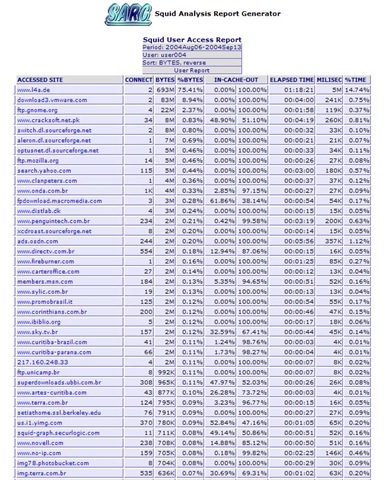
Here are a few screenshots to give you an idea that what it can do for you

Report link over a period

Users statistics

What users are downloading

Which sites are being accessed

The last screenshot tells us that which sites a particular user/ IP address is accessing and the first-n-second screenshots tells us that how much traffic is passing through Squid and what is the distribution? Probably much of what we actually wanna know.


Here it comes that how to get it in action in layman’s way:

Getting SARG Installed: First you need your apache running means you must be able to get your apache page on hitting http://localhost and then proceed to get the RPM for SARG first. As I am taking the case of CentOS, so the way is to do

wget http://dag.wieers.com/rpm/packages/sarg/sarg-2.2.1-1.el4.rf.i386.rpm

This will download this 306 kb rpm to your current directory and then you just need to do

rpm –i sarg-2.2.1-1.el4.rf.i386.rpm


Configuring SARG: It places a sarg.conf in /etc/httpd/conf.d to take care of sarg-reports web form, while the other sarg.conf places itself in /etc/squid, where you need to edit it and commenting the line deny from all, which actually enabling only localhost to see the reports and denying all others. After that you can either place allow from all or write lines for providing report access to certain defined IP addresses only. After that just type the below and you are ready to go:

service httpd restart


Running SARG: SARG automatically places its scripts in /etc/cron.daily,  /etc/cron.weekly, /etc/cron.monthly, which will keep on performing its job without any intervention required. You need not to do anything for it. Although if you want to generate a one-shot SARG report, then you can always use

sarg -ix


Hope you will like the way, it does the job of Squid reporting for you in most simplest yet most effective way. In next, I will try that how can these reports could be customized to make most of it.

photo of Nitish KumarNitish Kumar

Google’s Picasa 3.5-Now with Face Detection

The last article was about managing your e-books and now here comes the management of pictures and videos all around scattered all around over PCs. We attend parties, roam around places and have fun moments in schools, colleges n offices and with sophisticated mobile cameras and cheap digital cameras available all over make us end up number of images growing up in our PCs all the time.

We go after the collection, sometimes saving by dates, sometimes saving by occasions, sometimes saving by people’s name and sometimes in the name of places. When we get finished of this all work, there is still remain lots of work of visiting them, editing them, using them in various ways and need of lots of different tools like Photoshop etc. Ever wondered if it was easier? I am sure that you must have heard the name of Google’s Picasa somewhere even if not used yourself.

ss2

Firstly introduced to world in October 2002 by Idealab and then owned by Google in July 2004, Picasa now has become one-stop-solution of all your general image collection, editing, distribution and archiving needs. It may be used to arrange the photos to various ways and then provide ways to touch ups, edits and enhancements. Once the images are ready, there are many options for output like traditional slideshows, posters, collages, web albums, blogs and email.


Firstly introduced through Picasa Web Albums (its web version), name tabs (means the face detection technology) is now part of the latest Picasa build as well and you can’t feel how exciting it is without actually going through it.

Picasa scans your computer for photos and videos of almost all the formats and start arranging them automatically. With the latest version now, it also scan all the pics for the faces (obviously takes time and resources) and ask you to name tag them. Once you tagged, it also search all the similar faces and start sending you suggestions to add them under the appropriate names. I was really amazed that how much speedy the process is. On my own PC, in a matter of 2 hours, it got more than 2000 faces under my own name and more than 4000 faces under other people’s name.

The algorithm was good enough to group siblings with similar faces under one group suggestions, if we have not named them separately and once named separately, it was not confusing them next time again like it’s learning things very fast.

Nitish Kumar

As about features, then there are number of features in picasa, which could be categorized as follows:

  1. Organizing Photos and Videos. Using name tags, geo tags.
  2. Face detection technology now makes it simple to organize the photo collection by what matters most in those photos; the people.
  3. Integrity of Google Maps makes it simple to geo tag photos over map.
  4. Creativity unlimited through lots of editing options
  5. Sharing made simple through blogs, Picasa Web Album Upload/Sync and emails

If I go through number of features and details about what Picasa has and what it can do for you, then it will take books, but if you just download it to your PC and start living with it, then it would be a tremendous experience for yourself. I really thank to Google and the technology world, we are living in. 🙂

Other links:

http://googleblog.blogspot.com/search/label/photos

Making Squid Server from Scratch: The Dummies Manual

Most of us should have heard of Squid, mostly while discussing requirements of restricting Internet Usages among clients. Although a requirement for Squid may arise for any few of the following reasons or anything else:

1- To limit bandwidth usages: Squid optimizes data flow between client and server to improve performance and caches frequently-used content to save bandwidth (As data is being accessed locally not through ISP for further requests).

Moreover, Organizations might have limited bandwidth or expensive over some threshold value, so management cannot permit employees to download inappropriate material as it usages precious bandwidth (there are even options to limit the download size through Squid Server, which might be handy for such a scenario).

2- Due to Organizational Policy: Sometimes, organizations might have very strict internet policies regarding offensive materials. For this and for other reasons like controlling distractions, they don’t want their employees gaining access to inappropriate sites.

3- To limit usages as per defined hours: Sometimes, organizations might need to provide internet access to employees during certain working days/ hours only.

4- Monitoring site access patterns: Sometimes, in place of restricting or in addition of restricting internet access, the purpose might be monitoring the usages patterns for further steps to optimize or restrict.

Most special point about Squid is its being open source and vast availability of information and tweaks through forums and blogs. That’s why it’s most preferable solution for any such scenario.


Here I am providing the Step By Step Dummies Manual for implementing a Squid Proxy Server for layman like me, which should be sure helpful for many of us (including myself).

Step-by-Step with the implementation:

1- Base Machine: For my deployment, I chosen CentOS as the Linux installation due to availability and reliability of update sources for the OS itself (its replica OS to Redhat Enterprise versions with almost all features). The Configuration for the machine was 2.66 GHz Core 2 Duo Processor, 1 GB RAM and 160 GB HDD space.

Installation was customized to have 2 GB swap partition, 200 MB boot partition, Squid package checked, Web Server packages checked, SendMail related packages (Squid may be configured to send reports on mail), MySQL/ PHP packages checked (not required for Squid itself, but might be required for reporting software’s later on).

2- Setting Up the services: We need just one service specially Squid, but I will recommend to keep the same server up as an Apache Web Server as well, so that could customize Squid Error Messages with pics or logos.

Here is the basic way:

# chkconfig squid on
# chkconfig httpd on

The above commands will set up the services squid and httpd ON on startup. For later dealing with Squid Service, you can always use the following commands:

# /etc/init.d/squid start
# /etc/init.d/squid stop
# /etc/init.d/squid restart

Although I will come up with firewall and iptables stuff at the later part of this manual itself (as integrating squid and iptables is kind of necessary for any production environment), but for people, who wish to keep them minimal with squid, here is what minimum needed to do with firewall. First check whether port 3128 is opened or not

# netstat –tulpn | grep 3128

If not, then next part would be

# vi /etc/sysconfig/iptables

And append the following line to open up the port 3128 for squid:

-A RH-Firewall-1-INPUT -m state --state NEW,ESTABLISHED,RELATED - m tcp -p tcp --dport 3128 -j ACCEPT

And finally, restart of iptables service (Firewall service)

# /etc/init.d/iptables restart

3- Configuring Squid: Till here, you got Squid services are up and running and now the next and major part remaining is setting up configurations, defining ACLs and setting Access Groups for getting a basic squid configuration running. Except creating a few files for storing domain names to allow/ deny or to store keywords to deny, now most of the part has to be done by editing Squid configuration file squid.conf

# vi /etc/squid/squid.conf

The starting step of playing with squid.conf is setting a hostname for Squid, which is essential for its working. Need to find out visibal_hostname and setting it by putting a name.

visible_hostname squidproxy

Now, first we need to understand the basic requirements and then have to design a policy according to that. So, what your general requirements might be?

1- You may require groups of IP Addresses (different sets), which will have customized web access per requirements/ policy.

2- You may require that few groups might be restricted to only few mentioned sites, few groups might require access for most of the sites (even not documented ones) and few inappropriate ones blocked either domain-based or keywordbased.

3- You may require set of user names/ passwords to access the web along with rules including the above two. (I am not taking this specific one as my case for simplicity reasons).

Although there are numerous Use-Case-Scenario for Squid, but I guess the above ones cover most of the corporate scenarios for basic security administration. So, I am starting with this.


For documentation and readability purpose, you need to name/ remember the various requirement groups first like.IT, Management, Team1, Team2 etc. and then we will proceed further to configure policy for each of the group.

Rest all is about Access Control List definitions. One can limit user’s ability to browse the internet through ACLs. Each ACL defines a particular type of activity, such as an access time or source network, then all ACL statements are linked to http_access statement that tells squid that whether or not to deny or allow the traffic that matches particular ACL.

Squid matches each web access request it receives by checking the http_access list from top to bottom. If it finds a match, it enforces allow or deny statement and stop reading further (that’s why you need to be careful not to put a deny statement above similar allow statement).

Note: The last http_access statement denies all access that’s why we need to keep all of our customization above the same line.

Making Internet Access Policy: First set of rules (template): First you need to start from Access Controls section. At first you need to name a group of IP Addresses and then have to define ACLs for domain-based/ keyword-based site access blocking. I am taking the case of IT Support Web Access, where we need to block a selected list of sites and have to keep rest of the web opened. Although format is given in squid.conf itself, but I am putting the format here as well. There might be two ways to define the address range as given below:

# acl aclname src ip-address/netmask or # acl aclname src addr1-addr2/netmask

In next step, it’s better to keep everything allowed/ denied network, denied sites, denied keywords, so that later updating could be done without touching the squid.conf itself, moreover, backing up configuration would involve backing up those files and squid.conf itself that would be much cleaner and readable than usually squid.conf ended up to be.

Here I am taking first case of management network (just an example for use case).

Requirement is, we have to allow some specific IPs to access internet, some specific sites like orkut, facebook etc might be needed to be blocked, some specific keywords like port, xxx might be needed to be blocked and even you might have some machines in the same IP range that should not be given any internet access at all.

The following snip-set of configuration shows how to do it (acl names itself enough to explain).

# ACLs to define Management Network 
#——————————————————- 
acl management_network src "/usr/local/etc/squid/management/management_network" 
acl management_deny_network src "/usr/local/etc/squid/management/management_deny_network" 
acl management_deny_sites dstdomain "/usr/local/etc/squid/management/management_deny_sites" 
acl management_deny_keywords url_regex -i "/usr/local/etc/squid/management/management_deny_keywords"
#——————————————————-

Now, the next and final set of configuration entries would be selected domains and keywords denying first and then allowing rest of the web (squid scans top to bottom).

# Allow/deny web access to Management Network 
#——————————————————- 
http_access deny management_deny_network 
http_access deny management_deny_sites 
http_access deny management_deny_keywords 
http_access allow management_network 
#——————————————————-

Now, most importantly, you need to create these files at respective locations and putting required entries in them.

The profit for this approach is, any newbie could maintain the squid as usual maintenance works asks for adding/ removing IPs and adding/ removing sites and keywords for denying. It will save squid.conf from being messed up again and again by simple requirements, moreover, will keep it clean and readable.

In this way, all the files would be kept outside squid directory for keeping other IT staff not messing with actual squid.conf itself in case of any short term requirement. Now, there is a folder /usr/local/etc/squid and I’ll make folders inside this folder with the names of access groups as required (like in above case, I made a folder named management).

management_network will keep IP addresses to allow. Syntax might be one IP in each line or range like 172.16.1.25-172.16.1.50 or 172.16.11.0/24

management_deny_network will keep IP addresses that should not get any internet access.

management_deny_sites will keep domains to be denied (one domain in each line)

management_deny_keywords will keep keywords, which if are contained in any url then the whole URL should be blocked (like xxx).

More Restrictive Policy for another group of IPs: Second set of rules: Now, consider a requirement, where you have to allow only provided set of domains/ websites and have to restrict rest of the web access i.e. just company mail site/ website.

Again, you will be needed to pick another range of IP addresses and then defining the rules in following way (on the above pattern). Say the network would be MIS network:

# Permission set defined for MIS Network – Nitish Kumar
# —————————————————————
acl mis_network src "/usr/local/etc/squid/mis/mis_network" 
acl mis_deny_network src "/usr/local/etc/squid/mis/mis_deny_network" 
acl misGoodSites dstdomain "/usr/local/etc/squid/mis/misGoodSites"
# —————————————————————

Now, the next and final set of configuration entries would be selected domains and keywords denying first and then allowing rest of the web (squid scans top to bottom).

# Defining web access for MIS Network – Nitish Kumar

# ———————————————————-
http_access deny mis_deny_network
http_access allow mis_network misGoodSites

http_access deny mis_network

# ———————————————————-

Explanation for file names are similar as was in last case. Here misGoodSites file contain the names of those domains, which will be allowed and rest all will be restricted.

In this way, the second kind of requirement is done to restrict the web access in aggressive way, where only intimated sites would be allowed.

Note: In this scenario, you would be receiving request about site not opening in proper manners and of skipping frames/ pics etc. The reason of such issues would be third party domain embedded in the domains we allowed. So, obviously, the frames and pics are being blocked as they are from not mentioned domain. In such a case, you need to find out these third party domains and allowing them in Good site list.

So, here is the simplistic configuration for squid. There might be many use cases and many on-the-fly custom issues as per scenario, which could be worked out easily on the basis of extensive support provided through blogs and forums all over the web.

Rest part of the Squid Management belongs to Internet Connection and Log Management. If Internet Connection is working over Squid server, then it should work over client after configuring proxy configuration IP/PORT in internet options.

As about directories and logs, then cache directory location is /var/spool/squid and log directory location is /var/log/squid and the important log files, while will be needed to be managed later on are store.log, access.log, users.log and cache.log Note that squid can handle maximum size of a log file as 2GB only and after the same squid service will be terminated, so have to take care of that. Although fortunately, logrotate program automatically takes care of purging the data.

Now, with the above part anybody could easily configure a working Proxy Server and happily live with it later on more easier than other squid configuration manuals suggest.

For people asking for more, here are a few more tips and recommendations

Blocking MSN/ Yahoo/ Gtalk Messengers

Sure, most of you will come across such a requirement and trouble with that is leading messenger know that they would face proxy at some places so they already come with ways to bypass the proxy itself, which makes the job a bit difficult. Here is how to accomplish the same task.

First define the list of IP addresses that some smart messengers like MSN or Yahoo could use (like 64.4.13.0/24 , 207.46.104.0/24). The below section will go to network definition section.

acl bannedips dst "/usr/local/etc/squid/bannedip"

Now, how to use the rules to block messenger traffic

# No Messenger
# ———————————————————-
acl stopmsn req_mime_type ^application/x-msn-messenger$
acl msngw url_regex -i gateway.dll
http_access deny stopmsn
http_access deny msngw
http_access deny bannedips
# ———————————————————-

No Cache for selected sites in Squid

Caching is good for sites with mostly static content, but it could create lots of session related troubles around sites with more dynamic contents and it might be a better option to choose not caching any data for a particular set of sites. Here is how to implement it:

# Defining list to preventing caching for sites
# ——————————————————————-
acl prevent_cache dstdomain "/usr/local/etc/squid/No_Cache_Sites"
acl prevent_cache_file url_regex -i "/usr/local/etc/squid/No_Cache_Ext"
# ——————————————————————-

The above part needs to put, where network ranges are defined (above other custom rules) and the below part has to be placed where rest of http_access statements are placed (above other custom rules):

# Preventing caching for particular sites
# ———————————————————-
no_cache deny prevent_cache
no_cache deny prevent_cache_file
# ———————————————————-

And now we need to put the domains, which needs not to be cached in No_Cache_Sites file and File extensions not to be cached in No_Cache_Ext file and Squid server will stop caching for mentioned domain/ file extensions  after restarting the Squid.

Need pics/ logo in squid error messages?

What if you wish to customize the error message screen you get from Squid? Sure, you have to reach the error file named ERA_ACCESS_DENIED somewhere in /usr/share/…. and then have to edit with normal HTML. Lots of things could be done with this, but what many people wish to do first, is trying to put some gif or logo in the same error message.

Although I don’t favour putting images in error message as it make it a little heavier than originally it is, but here is the work-around.

Putting the image in same directory as ERA_ACCESS_DENIED file doesn’t work and what you require is making Squid itself a Web Server (that’s why I suggested to keep an installation of Apache over same server) and then referencing the image required through some web-path of the same Squid Server. Also notice that you also needs to allow Squid Server Access to all those PCs, where this error message is expected to appear otherwise, you will get error page without any gif or pics over it.

All Network range could be allowed to access Squid server in the following way

# Permission set defined for Complete Network
# ————————————————————-
acl all_network src 172.16.0.0/16
acl GoodSites url_regex -i "/usr/local/etc/squid/GoodSites"
# ————————————————————-

And as per convention, I followed throughout, the above lines will go around section for ACLs defining Network range and the lines given below will go along with rest of http_access statements.

# Defining web access for All Network
# ———————————————————-
http_access allow all_network GoodSites
# ———————————————————-

Outlook and Squid Solved: Requirement of iptables (Firewall)

Why my Outlook not working behind Squid?
How can we use Outlook express or any other mail client behind Squid?
Squid running fine and filtering traffic for http access, but how to use SMTP/POP3 with Squid?

It’s very easy to find people coming up with such queries. I wish to make a clear statement here “Squid has nothing to do with Outlook or SMTP/ POP3 access”. Squid is nothing but a HTTP proxy, which could intercept requests coming over http ports only, not these POP3/SMTP ports.

Disappointed? Don’t be.

Even if it’s not the case of Squid, you could make use of iptables (In built Linux Firewall), which will not only solve the above issue, but will add up more security for your squid.

What is needed to be done with iptables is as given below:

1. First of all, the Linux Box should act as a router to forward all requests coming on port 25 and 100 to outside means IP forwarding required.

2. In next part, as IP forwarding is enabled and any request coming to Box, is going outside, so all ports needs to be secure and controlled.

3. Need to redirect all requests coming to port 80 to port 3128, where squid rules will govern internet access.

4. Need to allow only required ports open on Squid (like 22, 3128, 25, 110, 995, 467).

5. Could be defined that which workstations could be able to make use SMTP/ POP3 through same server.

6. Could be defined that only a few workstations could be able to do ssh to Squid server.

For allowing SMTP/ POP3 connections, your Linux Box (Squid Installation) needs to act as a gateway, which will be entered in Default Gateway entry of client PC. For doing so, one needs to enable IP Forwarding on the same.

It’s disabled by default. For checking the same, you may type the following:

cat /proc/sys/net/ipv4/ip_forward

If output is 1, then nothing to do and if output is 0, then it needs to be ON.

For permanently putting IP Forwarding as ON, you need to change the value of net.ipv4.ip_forward to 1 from 0 in the file

/etc/sysctl.conf. The changes could take affect by either a reboot or by the command

sysctl –p /etc/sysctl.conf

Once you have enabled it, the immediate step is to redirect all traffic of port 80 to port 3128, securing other ports, allowing required ports, allowing ICMP ping, allowing ssh etc. Edit /etc/sysconfig/iptables file and put the following in that.

*nat
: PREROUTING ACCEPT [631:109032]
: POSTROUTING ACCEPT [276:26246]
:OUTPUT ACCEPT [276:26246]
-A PREROUTING -i eth0 -p tcp -m tcp –dport 80 -j REDIRECT –to-ports 3128
COMMIT
*filter
:INPUT DROP [490:62558]
:FORWARD ACCEPT [0:0]
:OUTPUT ACCEPT [10914:7678585]
-A INPUT -m state –state RELATED,ESTABLISHED -j ACCEPT
-A INPUT -i eth0 -p tcp -m tcp –dport 22 -j ACCEPT
-A INPUT -i eth0 -p tcp -m tcp –dport 3128 -j ACCEPT
-A INPUT -i eth0 -p tcp -m tcp –dport 25 -j ACCEPT
-A INPUT -i eth0 -p tcp -m tcp –dport 110 -j ACCEPT
-A INPUT -i eth0 -p udp -m udp –dport 25 -j ACCEPT
-A INPUT -i eth0 -p udp -m udp –dport 110 -j ACCEPT
-A INPUT -d 172.16.8.10 -p tcp -m tcp –sport 1024:65535 –dport 80 -m state –state NEW,ESTABLISHED -j ACCEPT
-A INPUT -i eth0 -p tcp -m tcp –dport 10051 -j ACCEPT
-A INPUT -i eth0 -p tcp -m tcp –dport 10050 -j ACCEPT
-A INPUT -d 172.16.8.10 -p icmp -m icmp –icmp-type 8 -m state –state NEW,RELATED,ESTABLISHED -j ACCEPT
-A OUTPUT -s 172.16.8.10 -p tcp -m tcp –sport 80 –dport 1024:65535 -m state –state ESTABLISHED -j ACCEPT
-A OUTPUT -s 172.16.8.10 -p icmp -m icmp –icmp-type 0 -m state –state RELATED,ESTABLISHED -j ACCEPT

COMMIT

In the above, I have enabled ports 22, 25, 110, 10051, 10050 (zabbix), also have allowed ICMP ping and web server (as I will use SARG for reporting of Squid Access) for all.

Now, after this, if you use Squid Server’s IP Address as Default Gateway, then you will be governed by all Squid rules (without putting Squid’s IP Address in proxy setting) and also would be able to sent-receive emails in Outlook (Note that currently, everyone is allowed over port 110, port 22 for all sites).

Task: Enable or allow ICMP ping incoming client request

For people looking for enabling ICMP ping only, use following three command in order.

Rule to enable ICMP ping incoming client request (Assuming that default iptables policy is to drop all INPUT and OUTPUT packets)

SERVER_IP="IP_Address"
iptables -A INPUT -p icmp –icmp-type 8 -s 0/0 -d $SERVER_IP -m state –state NEW,ESTABLISHED,RELATED -j ACCEPT
iptables -A OUTPUT -p icmp –icmp-type 0 -s $SERVER_IP -d 0/0 -m state –state ESTABLISHED,RELATED

Task: Allow SSH from given IP Addresses only

Rule to allow SSH from one given IP Address only (Assuming that default iptables policy is to drop all INPUT and OUTPUT packets on SSH port)

Although there are many other ways to do it, but I am putting the iptables way here

iptables -A INPUT -p tcp -m state –state NEW,ESTABLISHED -s
172.16.12.0/24 –dport 22 -j ACCEPT
iptables -A OUTPUT -p tcp -m state –state NEW,ESTABLISHED -d
172.16.12.0/24 –sport 22 -j ACCEPT

It will allow only IP Address of 172.16.12.0/24 series to SSH the box. Similarly individual IP Address and range could be allowed.

I hope I have provided a complete info for anyone wishing to start with Squid. Requesting you all to put your queries, so that I could make this manual better and covering more and more aspects. Although work perfectly, but iptables part is little messy in my manual. I would welcome, if someone suggest some more flexible ways (preferably file based rules) with easy conventions.

I also recommend using SARG for daily/ weekly/ monthly online reporting as its effective and very easy to use. Here is how to implement it.

So, Enjoy a Happy Safe Browsing by SQUID.

Blogging; Howto, Setup and working with the system

Sometimes, we write coz we are afraid of our empty selves.
Sometimes, we write coz we feel afraid that why we are not feeling like writing.
Sometimes, we write coz we just wanted to say something and don’t want to say the same.
Sometimes ….

There might be many reasons, why I am writing this time, there might be many reasons, why one writes or think about writing. Some times back, I wrote an article about writing blog with an obsession that may it inspire few more people to write blogs. May be it was for some, but today I wish to put a little more efforts.

Why to write a blog? I have already written over it and now I am going to re-write a few points and also that what are the tools and easy practices for the same. I will not forget to mention that one push for this article was an article from ProBlogger. I agree from the point made by the author that there are two types of bloggers;

First one, who get into writing due to free flow of thoughts and quick enough to sit down and type on before the thoughts may get mixed up in already messed up life’s little big things.

Second one, who think about writing first and then plan for the same with related materials, make a draft first, think about its salability, think about it marketability, think about theme around it and think about all other minor details, which right now, I don’t even know. 🙂 But the best part is, in all these things, this second category take just a very little time more than the first category.

Obviously, the results are favorable for the second category and the first category sometimes cries that why don’t their authentic thoughts get proper attention than the technical ones. Anyway, I still wish to be termed as one from the first category and even right now wish to write for the first category.

I have wrote earlier that what are the tools required for blogging, but let me summarize again more systematically and a little bit technically (of course few words from ProBlogger). Followings are somewhat necessary steps, which a newbie blogger should take on his mind:

  • Choosing a topic: I know this doesn’t go well with newbies as we want to write but we don’t know what our exact tastes are and at which topics we could attract more people. Note that in start choosing topics might be random, but sooner or later you will be needed to find some central topic for your blog, which will define the theme around your blog, so give a thought about the topic for sure. 
  • Choosing a platform and design: This is about choosing platforms, tools, attractive themes and contents. for a professional view, you could check the ProBlogger Article. But at my blog, thoughts and recommendations are my own and so I recommend WordPress, whole heartedly either you are writing over the free WordPress.com domain or setting up your own domain from the software provided by WordPress.org. The reason of recommendation is the level of comfort and available options you could configure, which is also certified by most of the public. After choosing the platform, you need to choose a theme as light as possible, which could loads as fast as possible coz you have only few seconds to impress the person visiting for your link and if most of these seconds will be taken by loading of pages, then you know the answer …. F*** Off.
  • Choosing a name/domain: If you are not planning invest anything in start and just wish to go for it for satisfying your passions of writing, then the second part is irrelevant, but the first part still matters a lot. Choosing the name; It will sure be a crucial step for your blog as its kind of identity, which will be hard to change later on. You need to be specific about naming the blog, so that it could strictly match up with your blog theme today and tomorrow. One more point is about ease of search and easy to market, so that better is if the name contains the central keyword, your blog is going to be all about.
  • A writing tool: Although there are many ways including Microsoft Word, Open Office etc from where you could post articles to your blog without thinking that blogging is something different than making docs in your computer, but when it comes to SEO and marketing things then you come to know that technically how much important it is to have as clean HTML code behind your post as much possible. So, better to use web editor and knowing some basics of HTML as well or if thinking about convenience then Using Windows Live Editor. For me the later option been a joy ride till now, due to availability of so many plugins, about which you could only dream of, if you are on your own with default web editor only.
  • Writing/creating a hundred posts (assuming an average of four posts a week): Although it was not serious thing to me in first sight, but I found it very true, when given some thoughts over it. Sure, habitual and regular writing is what could be foundation of a successful blogging, otherwise, you will come up with a random thought, an article will roar for few days and then you will come to see your own blog after around one month. If even you are not interested and serious about your blog, then who else will be. Be regular, be rich about content and put your efforts as earning first 1000 views is much harder than earning next 1000.
  • Subscribing to big blogs of similar tastes: I will recommend for every blogger to make full use of Google Reader etc to keep a collection of subscriptions and also keep on visiting the same as a daily habit as this provides food for your thoughts. As many things and thoughts you know, as much and as content you could write upon.
     
  • Registering with digg, stumbleupon, twitter, del.ico.us etc. : It might sound a joke, if someone come up to say that he/ she is not part of all these or don’t even know, but it might be. Why to register with these things? You just want to post some thoughts over web after all not the social networking. But these things are important for giving initial exposure towards your posts. Its better if you are connected to many in these way, so that if you wish to say something, many will be here to take attention.
  • Participating in forums: This requirement is due to the same the reason, PR exercise as I mentioned in earlier para. Moreover, it provides you quick comments and thoughts sometimes.
     
  • Leaving comments/back links on other blogs: Its like dropping your business card at places and writing names on walls filled with other advertisements, which make your name getting attention. Once, you are seriously in blogging word, you will come to know that how precious these back links are as these back links provide you a share of other’s hard work many times and sometimes, even this little share is too much for a starter.
  • Printing business cards with your blog address/ Telling friends about your blog: Its the basic advertising but it still has worth for everyone. Its like mouth to mouth publicity for your blog and very better if it results in developing a core of followers. Spreading the word on social networks (facebook, etc) is just part of the job. 
  • Understanding the trends and search terms about your posts: Its a very necessary part of the game to deploy webmaster tools from Google, Yahoo, Microsoft etc to know that how your posts are being reached. What are the search terms and what are the back links, so that you could work more and more in a systematic way. After all, its your learning curve, which makes you gain something over others. 
  • Keep targets about your reach: In early days, take it as a play to know hits over your blog every day. Early targets might be 50 per day, then 100 per day and then 1000 per week and so on. Once, you are involved in this game, you automatically get yourself involved in following the other steps to keep the number of hits steady up.

Anyway, leaving from here.. thought to write as was not feeling asleep, so thought to drop in some words about writing.

Google Wave: Finally I am introduced with it

Google wave; the all big buzz and I was failing to reach it as I was lazy enough in the start, when it was first declared long back. Yes as per wiki, Google wave was first declared really long back in the Google I/O conference on May 28, 2009.

wave

I went after it, only when my brother Dewashish asked me for an invite to Google Wave. I tried to know the definition and my search ended over the wiki

It’s a communications protocol designed to merge e-mail, instant messaging, wikis, and social networking. It has a strong collaborative and real-time focus supported by extensions that can provide, for example, spelling/grammar checking, automated translation among 40 languages, and numerous other extensions. Initially released only to developers, a "preview release" of Google Wave was extended to nearly 1 million users beginning September 30, 2009, with the initial 100,000 users each allowed to invite from twenty to thirty additional users.

I tried to digg little bit more deeper and got one more line Google Wave is designed as a new Internet communications platform. It is written in Java using OpenJDK and its web interface uses the Google Web Toolkit. (Same GWT behind new interface of Orkut).

Ok! I am leaving all these lines from external sources and coming up from my own. For me, its something like Google’s implementation of Wiki. As Google says, its a hosted XML Document: the wave, which could be edited by any of the person involved in the conversation.

I would like to present my first Google Wave conversation with the person, from whom I got the invite. May be you all get some idea of my learning about this in raw….


Sachin: Hey, Nitish, So You got the invitation!

Let me know your experience.

Me: Yes I got it and trying to know exactly what this is?

The experience is nice till now and as much I got to know then its not an email tool, but could be said as Google’s implementation of Wiki. If you understand that what wiki is then you could understand that what Google wave is and what Google is trying to achieve with it.

Sachin: This is new email tool, cannot understand yet, once we get more and more people involved may be we will get to know the utilization. There are lots of things, We can use lots of social networking things. but definitely start ….

Me: hold it for a second, I want to object. Although Google’s definition says that it has something to do with Social Networking, I will strongly object. Its not another Orkut or facebook or MySpace. Its more like Wiki. Your conversations are an Open XML shared Document, which anyone involved could edit and the editing would be completely logged and visibly real time.

Wiki was a Document which anyone could edit, it was a concept which was earlier much opposed that such an information would not be reliable as anyone could edit in wrong ways, but later on over years, as Wiki got success it was proved that if one could edit it for wrong then more people could edit it for right ways as well and so Wiki worked and worked in such a tremendous ways that now they are kind of most reliable source of information for everyone.

I guess Google wave is something like that. A fully rich document (pictures, links, ppts, videos and all type of rich media you know), in which Google is making full use of Google Docs and its strength of real time communication. Now people join in .. have their documents online and these documents will be shared over the users participating the conversation and such document will move online to become some dynamic source of information

People knowing Team Softwares and Wiki will get a true idea about what Google wave.

Sachin: I am looking for more like corporate communication through google wave. What do you think?

Me: Yeah … you are heading in exactly right direction… first use will be sure Corporate communication, and specially software developers or project handlers as corporate is already using some of such things, and could relate this faster than others.

Main target is to create collaborative documents, which will hold dynamically changing information from more than one sources, which will be edited to suit with the facts more and more and will come up with an ultimate information source.

I would recommend all of you to go through the tech crunch article for the details. Wonderfully detailed article about Google wave.

I also came to know about a few books over the same topic Google Wave and the leading one, which is online for free is http://completewaveguide.com/

I gone through a few of the pages and found them short enough to keep the interest and info. Take a look.

The other books, which I am aggressively looking for, are books from O’reilly publication with the title Google Wave: Up and Running and Getting Started with Google Wave. Although till now, no luck in finding a free copy of the same.

I managed to find somehow a PDF calling itself as Google Wave for Dummies. I guess, its the same arranged PDF version of the Completewaveguide. Could take a look over the PDF Book for the best info available for my side.

updates: 6th December 2009 

After many days of receiving invite, now from 2:38 PM of today, I also got the power to invite 8 more and I have started using the same. 🙂

Google wave invite

del.icio.us Tags:


Other related links:

http://mashable.com/2009/11/14/google-wave-use-cases/

http://en.wikipedia.org/wiki/Google_Wave

Tech Crunch Article


New Lighter and Faster Orkut

Have you got your invitation yet? Few days back, we were hearing the same about Google Wave and now we are hearing the same about New Orkut. Luckily getting to new version of orkut wasn’t that tougher as getting hands on Google Wave seems to be. In the ads, it was asked to join the community to get an invitation, although I didn’t liked the idea very much to join a community for sake of just getting an invitation, which in turns finally I didn’t got from.

Although the community started from 12th October 2009 to build up interest for New Version of Orkut, The Brand New Version of Orkut was officially launched by 28th October 2009.

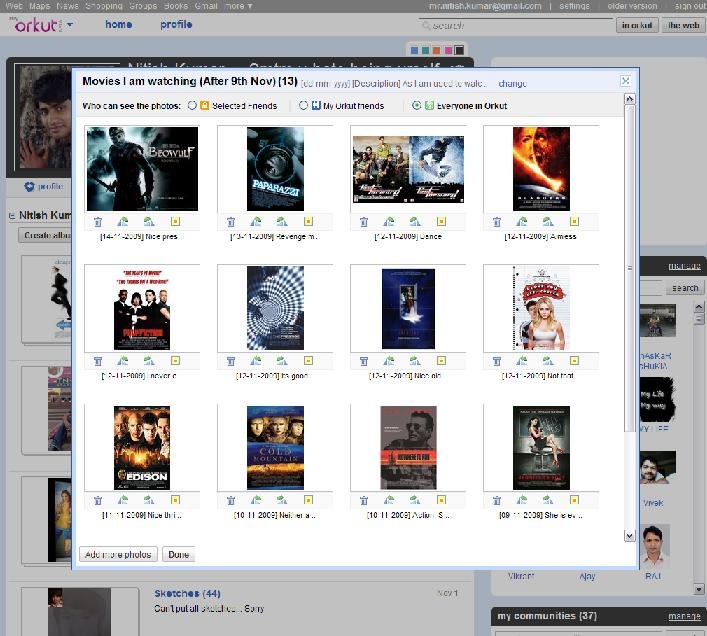
As we can see that it’s completely rebuilt interface with heavy use of ajax everywhere and as their official blog says for building it they have make use of Google Web Toolkit (GWT) throughout. With what they been successful is bringing most of the things integrated on the first page itself, either its community handling, friends management, scraps, photos or anything else. I was very much impressed with Photos handling obviously, which is now at par with Facebook or other such sites. The interface to handle photos is very intuitive and blazing faster than the earlier version.

As other bloggers pointed out, here are some new features:

1. Added scroll bar for Communities & Friends List
2. Ajax color changer added for profile wrapper
3. Accepting members to the communities done with ajax, you can accept many people. at once
4. Accepting friends request done with ajax. you still have to accept individually.
5. Recent visitors and recent birthdays shown with profile picture. (Little anoying)
6. Icons changed for chat availability status.
7. Adding comments to status updates of friends.
8. Drop down CSS menu made for different tabs like profile, photos & videos.
9. More updates load below with ajax loader.
10. Link to other google services added on top.
11. Drop down menu added to orkut logo (useless)
12. Friends suggestions are in ajax ring like loading
13. Manage button added to friends & communities link.
14. Basic formatting options added to scraps with google chat smileys. (A warm new feature for all).

Although I still remember Orkut’s early days when the focus was to keep the interface simple and specially that blue throughout and I’m sure that many of us, will keep missing that simplest interface, which made us Orkut go higher places in comparison of Facebook or MySpace. But like technology is spreading and improving, changes are likely to touch the lives from every side and such an overhauling of Orkut interface was expected from long. So is this U-Turn from keep it simple and blue philosophy.

The new interface is sure useful in many senses for the users addicted to Orkut, but I also wish to point out that it might not be that easy or attractive for the new users coming into it. For new users, its just the same like MySpace or Facebook and I am not sure that you could win new users from there. Let’s see, how this new version proceeds.

Suppose you got the invitation for The New Orkut but after playing with the new interface for few hours, you want to go to the old version of Orkut then you can do it by following instructions.

“How To Get the Older Version Back in The New Orkut?”

You will switch back to the older version of the Orkut by going at the “older version” option in the top right corner of the new Orkut interface. Click on it and you will back into the old Orkut world. Simply click on the link “try the new Orkut”, in the top navigation bar, if you want to go into the New Orkut.


If we talk about users opinions, then not to mention only few bloggers, but I didn’t found much of a positive buzz about this around friends. Few of them commented about missing features and most of them commented that they were used to of earlier version and this new interface will take time to adjust with. I guess, its like shifting from Windows XP interface to Windows 7. We may feel it better, but find no reasons to change. 🙂 So tell me after your experience about which version of Orkut is better, the old one or the new one?

WDS Client Reboot Issue

Please refer to my detailed article. Most of the time, this issue will come due to insufficient RAM (less than 512 Mb) in WDS Client.

To all people starting with WDS, I really really want to warn in LOUD that please do care about RAM requirements as WDS could run if RAM is lesser in Server side, but it can’t if client is having less than 512 MB RAM. Now, after noticing this issue, I am finding that most of the issues, while implementation phase came for this single reason only.

Another thing, which I noticed is that any of the image, boot.vim or WinPE.vim could be used to capture or deploy, the objective of keep two images in the menu, make the two tasks seperate; One capturing image and second deploying image. With two images in menu, both the tasks may go together in production.

I also noticed that even if you might have created image for someone other HAL, sometimes it might work for other HAL (for me HP DX2280 image worked for IBM ThinkCenter), although drivers will still be missing. I thought one go around that collect RAW network drivers of all kind of machines you have (or as many network drivers, you can collect) in one folder and keep this folder in C:\ drive of every machine, you are going to image. It wont take many of Mbs, but will be handy, if you don’t have exact image, but a working image. At least you will easily get a network enabled, necessary software containing workstation, in which rest of the drivers could be filled.