

A couple of years ago, when we implemented Multi-Factor Authentication for a client through phased conditional access policies, our primary challenge was handling MFA exclusion requests. This involved validating business justifications and exempting users via an exemption group in the policies. We also had to follow up with users to remove them from the exemption group to ensure compliance.
It wasn’t just manual work, we were also challenged by the Security team. The authority to validate the business case should have been with the Security team, not with the operations. In the initial phases, many people wanted to be exempt from MFA hassles. These exemptions weren’t properly tracked, and even if a ticket was raised, there was no easy way to link it with the action in the audit logs. Furthermore, the project team that implemented MFA wasn’t supposed to handle such requests forever, and neither we nor the security team wanted to give this right to the helpdesk team.
To resolve the situation, we came up with a solution involving SharePoint List and Power Automate, which was able to delegate the task to helpdesk while keeping security team satisfied from compliance perspective and keeping clear correlation between the ticket reference and the action taken.
Step 1: Prepare the sharepoint list
We need to create a SharePoint list which should contain all relevant details which we want to capture from an exemption case from compliance point of view, like Ticket number, pre-approved scenario, user details, date, additional remarks if any.
Default ID field you would leave as such, second field would be a calculated field with the formula as =TEXT(Modified,”mm-dd-yyyy hh:mm:ss”) so that it would keep the timestamp of row creation, then next can be a user picker with allow multiple selection as unchecked and require that this column contains information is checked. Reason can be a choice field in which you would put pre-approved scenarios like below:
- Mobile / office phone not available
- Change of mobile / office phone
- Need to update MFA preference
- Campus support request
- Others (if others then need to specify the use case and also provide security approval)
Then the last column might be a mult-line field with name as additional remark. Also you can keep attachment field which is available by default as on from show / hide columns.
This list would need to have two levels of access, one as owner, which might be with administrator and then helpdesk can be given contributor access without delete (need to create a custom role and assign it to a group, in which we would add helpdesk user or anyone else who need to be delegated the task to exempt users) on the list so that they can add rows but can not delete rows.

Step 2: Create Power Automate flow
You would need to have an account with Power Automate license and that account needs to have permissions on sharepoint list which we just created and then it should have owner permissions on the exception group, which we would create in Entra ID.
Click on integrate, then Power Automate and then create a flow like below (new UI and old UI)

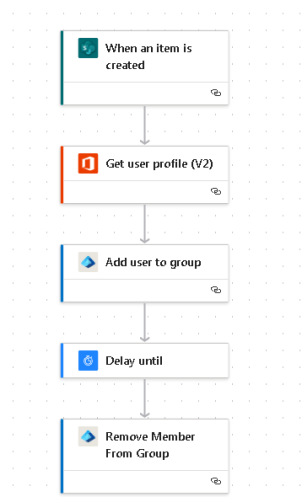
The trigger would need site address and list name (available from drop down), then in Get User profile (v2), you can put an expression like below
split(triggerOutputs()?['body/UserName/Claims'],'|')[2]
This would pick the userPrincipalname and then you can pass the obtained ID attribute to add user to group, where you need to specify group id manually.
Delay untill block can be a code like to wait for 24 hrs
addHours(utcnow(),24)
Then you add Remove member from group action, which would need to have group id manually specified and then ID obtained from get profile step.
And that’s It. You add a row in sharepoint, it would trigger the flow which would add the user in group, wait for 24 hrs and then would remove the same. Can add another line and it can run in parallel for the same in the same manner if under settings for the first trigger, you have specified concurrency.
Tell me how you find this solution?
 Nitish Kumar's Blog