WSUS Step By Step – Installation, Deployment and troubleshooting

[tweetmeme source=”mrnitishkumar” only_single=”false”]

We all know that Windows updates are important for security and functionality of our Windows PCs and we all want to keep our systems updated. But at the same time, people on volume limited internet plans also blame these windows updates running in background for escalated data usages, specially if we are running many systems and want to keep all of them updated. Sometimes we think that why are we downloading the same updates for each of the PC separately? Or feel that its really hard to keep track of what’s got updated and what’s not? Windows Server Update Services (WSUS) is one of the best solution for your all such worries.

If you are running a setup of at least 50 PCs then you sure must be knowing about WSUS already and if you not or thought that its too hard to implement then its about time to take note of it. What’s next in my post is nothing special that most of smart admins might not been knowing about, but I thought to make a step by step guide over WSUS from the resources already available over internet.


Offline updates solution: Autopatcher:

When you talk about updating few PCs just built up and installed, then the best tool that strikes me is Autopatcher. This tool downloads all the patches as per your selection and stores in a folder, which will contain an executable to update any PC (XP, 2000, 2003, Vista, Windows 7) offline. Not only that before updating it also detects that what already had been updated and more of it, the tool downloads updates in incremental ways, so that every time the folder will keep on growing to catch up the new updates.

Give it a try, its a must tool for sysadmins for updating newly installed PC in most efficient and quickest way. But note that its not a Microsoft Product, though I could guarantee myself from my experience that its perfectly sane.

Why WSUS, when you have Autopatcher?

Autopatcher could be called as entry level solution and sure a great thing about preparing PCs without networks, but the problem is, its still manual work. I mean you might have flexibility to download the updates once and keep it on some Network share location, but still you need to install patches manually over PCs and manual works to keep track of what’s updated and what’s not.

WSUS is an amazing Microsoft tool to end all such worries and that’s totally free of cost, just you need a Windows 2003 Server license, that’s it. It’s a service you run inside your organization on one or more servers which you configure to serve software updates to one or more AU clients. You can configure a WSUS server to download updates either from Microsoft or from another WSUS server within your organization.

Once you approve an update for installation, WSUS downloads it from configured upstream partner, and can then issue these updates to clients that request it. You can approve any update for some, all, or none of your computers. Once an update is approved, the targeted WSUS clients download the update using the Windows AU client. WSUS also provides reports on which clients have, and have not, had which updates.

You administer WSUS from

Start –>All Programs –> Administrative Tools –> Microsoft Windows Server Update Services.

WSUS not only keep all Windows clients across the organization updated without providing internet on all of them, but also reduces the Internet Bandwidth requirements as the updates get downloaded once only, not separately for all the windows clients.


System Requirements:

Followings are the set of requirements for installing a WSUS server:

Server Hardware Requirements

WSUS requires a single server for basic operation, although you can scale your WSUS implementation to larger numbers of servers if you wish. For a basic implementation of up to 500 users, hardware requirements, per Microsoft, are:

1. 1GHz CPU

2. 1GB RAM

You also need a network card, and around free disk space (described below)

Server Software Requirements

You need the following software components:

1. A supported Windows Server operating system – Windows Server 2003 is the preferred OS, but Windows 2000 is also supported. WSUS is supported on all editions of Windows Server 2003, but there are some restrictions of you use the Web Edition (See [WUS Restritions With2k3 Web].

2. IIS – WUS is operated via IIS, so your WUS Server needs to have IIS loaded. You need at least IIS 5.0.

3. .NET Framework 1.1 SP1 – get this 7.982MB download from the Microsoft download site. The .NET Framework 1.1 SP1 is delivered as a hot fix installation file (see KB article KB867460 for details). This expands to 55.6 MB (58,335,654 bytes) on disk prior to installation. The installation of this hot fix alsos stop IIS, and requires a reboot.

4. Background Intelligent Transfer Service 2.0 (BITS 2.0 English.zip) – this is a new version of BITS, at present only available to beta testers, or those on the OEP. This is a 1.34MB download.

5. WSUS Setup (WSUSSetup.exe) – Like BITS V2, this is available only to beta testers or members of the OEP at present. This is download is over 100mb.

6. SQL Database server. For Windows Server 2003 MSDE is installed during setup. For Windows 2000 it is not and MSDE or SQL server must be installed prior WUS setup.

Client Software Requirements

There are no special requirements for WUS Clients. Supported clients include Windows 2000, Windows XP and Windows 2003 Server (including the R2 server).

Server Disk Space Requirements

WUS Server disk space requirements fall into three categories: the WUS service, WUS updates and the WUS data base.

Microsoft recommends that you must have at least 6GB free disk space to store WUS content. At present, typical usage is around 1-2GB/language, although this does depend on what updates you specify and is likely to grow over time. Typical storage with multiple Operating systems can be as large as 60 or 70Gb.

The WSUS service installs (by default) into C:\Program Files\Update Services\. This folder takes up 365MB (371MB on disk) after the initial installation.

The WSUS Database is managed by MDSE, and is installed by default into C:\WSUS\MSSQL$WSUS. This folder takes up 216 MB after the initial install, synchronize and with only 2 clients. The size of the DB grows as you add more computers, and as you manage more updates.


Checklist before WSUS Installation:

The following is a simple checklist of possible issues.

1. Do you have Minimum Free Disk Space? See the WSUS Deployment Guide for more information on free disk space requirements.

2. Is the Installation drive & system partition formatted with NTFS? WSUS requires both the WSUS Database and the WSUS content to be loaded onto NTFS volumes.

3. Do you have IIS installed? IIS is required to setup, configure and manage (and use) WSUS.

4. Do you have Microsoft Internet Explorer 6.0 Service Pack 1 installed? This is required on your WSUS server.

5. Do you have Microsoft .NET Framework 1.1 Service Pack 1 installed? This is required, and WSUS server checks for it’s presence. NB: Installing the SP requires a reboot.

6. Do you have BITS 2.0 installed? This is required.

7. Do you have Database – SQL Server 2000/WMSDE/MSDE installed? A database is required, but WSUS will install WMSDE if no database service is found on the WSUS server.


Installing WSUS with in-built Local Database (SQL/MSDE):

Installing WUS with local database is pretty straight forward where, you have 2 Scenarios as given below:

· Installing WSUS on Default Website, with port 80.

· Installing WSUS on Custom Website, with port 8530.

Installing WSUS on Default Website, with port 80: This is the simplest installation with clicking over the WSUS Installation exe and following the instruction provided by the wizard.

Installing WSUS on Custom Website, with port 8530: Installing WSUS on custom Port 8530 is little different from the normal setup. You have to manually configure the client self update feature.

But, this kind of setup has many advantages including

· You can shut down port 80 to avoid malicious programs that target port 80.

· If you already have a website on port 80 like the Antivirus Applications, this kind of setup will help the functioning of both the sites independently.

Things to consider if you plan to install on custom port

· In this case, you have to manually set up up the selfupdate virtual directory on port 80 to enable client self update.

· You can use %\program\Update Services\Setup\InstallSelfupdateOnPort80.vbs script in order to allow those clients to self-update.

· To access the WSUS admin page, you have to include the custom port with the website like http://wsusserver:8350

· This port in not configurable during WSUSsetup, but can be changed later using IISADMIN.


Installation Overview:

As discussed earlier, WSUS Server holds the WSUS Software setup with IIS installed. Installation is very simple shown in these Steps:

Install WSUS on Server

· You need to setup WUSSETUP.exe

· Follow the wizard to specify content Folder & Administration Site.

· Take a note of Content folder which is needed while setting up the back End Server.


Initial WSUS Configuration

To setup, configure and manage your WUS server, you need to gain access to the WSUS Admin site on your WSUS Server:

From here you should do the following:

1. SET Server Options

This includes:

· Schedule – when to synchronize this WSUS Server

· Products and Classifications – define which patched to download. In particular, which products to download patches for (e.g. Windows 2000, Windows XP Pro, etc) and what type of updates to download (this includes security updates, driver updates, DDKs, tools, guidance, Feature Packs etc).

· Proxy Server Settings – you can specify a specific proxy server to use for updates,along with credentials if needed.

· Update Source – where this WSUS server should get it’s updates: from Microsoft, or an upstream WSUS server

· Languages – allows you to get language specific patches. NB: By Default, WSUS RC is set to download ALL languages. This is potentially harmful to your disk subsystem.

After you complete the configuration, ensure you save your options.

2. Perform Initial Synchronization

By default, WSUS is set to be synchronized manually. Once you configure your WSUS server, you should perform an initial synchronization. Depending on how many products, classifications and languages you have selected, and the speed of your internet connection, this could take a considerable amount of time.


WSUS Deployment:

There are a number of options available for deployment of WSUS like Group Policy based, Replica and Offline updates.

The following is the option that we use across our organization:

Group Policy based deployment

The following are a basic example setting that needs to apply over workstations for WSUS deployment:

Autopatcher

The fact to notice is that this policy needs to be applied over the OU of workstations not the OU of Users and so the settings are under computer settings not the user settings

Offline Updates:

If your environment demands a network segment be disconnected from the Internet, or disconnected from the rest of your network altogether, don’t think you need to resort to the “sneaker net” method of patch distribution. Simply build a stand-alone WSUS server and import updates from removable media such as tape or DVD-ROM.

The process of exporting the updates from an Internet-connected server, and then importing them into your disconnected one is well documented in the WSUS Deployment Guide. However, here are the steps at a high level to give you an idea of the process.

1. Build your stand-alone WSUS server and configure its language and express installation options to match that of the Internet-connected WSUS server that will provide updates.

2. Copy the update content directory from the Internet-connected WSUS server to removable media. Remember that this content directory may be quite large (multi-gigabytes) so you may need to resort to tape, dual-layer DVD, or external USB hard drive.

3. Export and copy the update metadata from the Internet-connected WUS server’s database to removable media.

4. Copy the update content from removable media onto the disconnected WSUS server.

5. Import the update metadata from removable media into the disconnected WUS server’s database.

Again, please refer to the documentation for full export/import procedures, including command-line tool options and correct file system paths to back up.

Replica Mode:

Another option for advanced deployments is replica mode. Much like WSUS server chains, replica servers inherit settings and updates from their upstream master server. However, unlike server chains, replica servers are designed for environments where a central administrator controls computer groups and update approval for the entire enterprise.

The only information that isn’t synchronized between the master server and its replica servers is the content of the computer groups themselves. For instance, an administrator might create four computer groups on the master server named Branch A through Branch D. While all replica servers will receive these group names, they will not contain any members. The idea behind this design is that the WSUS administrator will create enough computer groups to cover the entire enterprise. Then, a WSUS replica server at a branch office will add the local PCs and servers to a group (say, Branch B) and the centrally approved patches for that group will be installed. It sounds complicated, but it really isn’t once you get wrap your brain around it. For more detailed information on replicas, refer to the WSUS Deployment Guide.


General Approaches to Patching with WSUS

There are a couple of approaches you can take to using WSUS:

1. Detect and deploy required patches This is a simple approach to using WSUS. The idea is you approve all patches for detection, then approve for installation any updates shown as being needed.

2. Investigate and authorize each patch individually In this approach, you examine, and hopefully test, each update for suitability in your organization as part of an overall change management process. Once you are satisfied the update is appropriate, you approve it for installation for the appropriate target groups. This patch management strategy is more time consuming, but should provide greater stability. This approach is probably more appropriate for larger organizations, or where you have a diverse network and multiple target groups.


Maintenance:

Disk Space concerns

As mentioned in requirements section, WSUS requires huge disk space for storing patches, which could be overgrown anytime, if you do not choose the products to be updated wisely.

Better to choose only those updates that are required and skip other ones even if recommended. Like if your scenario doesn’t has Windows 7 PCs, then no need of downloading updates related to that, same with 64 bit OS’s, Itanium processor based updated and device drivers.

Once the disk space is full, it stops getting more updates, but it keeps on updating workstations with existing updates, but one has to clear up the space. That’s why its recommended “Not to keep the updates storage in OS drive (c:) otherwise, it may critical for the server.”

Cleanup activities

There is already a wizard in WSUS console for cleanup, which takes care of the following:

  • Unused updates and update revisions
  • Computers not contacting the server
  • Unneeded update files
  • Expired updates
  • Superseded updates

There are also ways for claiming disk space by removing some updates manually (wizard or console doesn’t remove updates from disk), but most of those procedures are messy and prone to error as of now. So, its recommended to use the wizard only and be wise while selecting the updates as once marked, the update will sure get downloaded, no matter you marked it as denied later.


WSUS Reports

For accessing reporting feature of WSUS, you are required to install report viewer from Microsoft

http://www.microsoft.com/downloads/details.aspx?FamilyID=a941c6b2-64dd-4d03-9ca7-4017a0d164fd&displaylang=en

After the same WSUS console provides excellent options of generating reports with graphs, lists and tables in CSV, XLS or even PDF formats.

Although reporting tool of WSUS already provides plenty of options, but we are yet to find some option that could report in the way that when the update got released and when got downloaded.

Currently, we are going with manual ways by importing lists of all updates and finding the dates from the Microsoft Updates Download site itself. A tedious job for the first time, but later on you have to use excel tips like vlookup etc for avoiding the work for already reported updates and updating only those few updates that might be downloaded after the last report you prepared.

Note: As per Microsoft schedule, monthly updates arrive on second Tuesday of the month, though many updates arrive at the other days as well depending on severity.


WSUS deployment Troubleshooting

This is a topic of continuous learning with the issues and resolutions. Sharing here a few of known issues with WSUS Client configuration:

WSUS uses client-server architecture. The WSUS client, which runs on client computer, wakes up on a regular basis and queries a WSUS server to find applicable updates. The WSUS client is also designed to update itself, via what is known as self-update. The idea is that the client will look for, and download, both the OS and application updates, but also updates to the client itself. The latest version of the AU client is required for client computers to interact fully with the WSUS server.

In most cases this mechanism works ok, and clients get updated as needed and are able to check in with the WSUS server. But on some systems, client computers either do not properly check in with the WSUS server or do not self update. These problems are both fairly rare and easy to overcome.

There are a set of client configuration checks you can make on client computers that are not connecting to WSUS properly, and a set of know issues.

Client Configuration checks

1. The first thing to check is whether the client computer is using the latest Automatic Update client version.

The current version of the Windows Update Agent (the WSUS client component in AU) is determined by the version of the WUAUENG.DLL, located in %systemroot% \system32 folder. If the version of WUAUENG.DLL is 5.4.3790.1000 or greater, the WSUS client (or WUA) is installed. A version less than 5.4.3790.1000 indicates that SUS or earlier AU version 1.0 is installed.

If you have an earlier version of the AU client, it must be updated in order to work with WSUS. Computers running Windows XP with Service Pack 2 (SP2) already have the WSUS client installed.
The AU client, when contacting the WSUS server, will automatically update itself to the latest WSUS version if the self-update files are properly setup on the server. When connected to Windows Update or Microsoft Update, the AU client will also be able to self-update if it is not running the latest version. In addition, the AU client can also be updated by using a signed stand-alone, installation package that is available from Microsoft.

2. If you want AU clients to update from a WSUS server in your environment, be sure you have set anonymous access permissions on the virtual Self Update directory and that it is on a Web server running on port 80. WSUS uses IIS to automatically update client computers to the WSUS-compatible Automatic Updates software version. To do this, WSUS Setup creates a virtual directory named Self Update, under the Web site running on port 80 of the computer where you installed WSUS. This virtual directory, called the “self-update tree”, contains the WSUS-compatible Automatic Updates software. Earlier Automatic Updates client versions can only update if they find the self-update tree on a Web server running on port 80. The access permissions on this virtual directory must be set to allow anonymous access. This Automatic Updates version check is done every time the client checks-in with the server to detect new approved updates.

3. Be aware of GP replication time which may cause delay in your clients’ self-update process the first time a WSUS server and client are mapped. If clients have been mapped to WSUS servers using GP in an Active Directory environment, the timing of AU client check in with the WSUS server can be impacted by AD GP refresh timing (generally about every 90 to 120 minutes depending on environment). Clients mapped to servers in a non-Active Directory environment can be forced to check in and update right away by running wuauclt/detectnow from the command prompt.

4. Another variable that will impact client check-in behavior is the Automatic Updates detection frequency setting. By default, this value is set to the maximum of every 22 hours. This means that every 22 hours, minus a random offset, AU polls or checks in with the WSUS server for approved updates. Every time the client checks in, it also verifies it has the latest version of the client and if not, it self-updates from the server. This setting can be modified via policy or by directly editing the local policy or registry on the client. The minimum frequency is one hour. If clients have been mapped to a WSUS server via local policy or direct registry editing, without detection forced by running wuauclt/detectnow, it could be up to 22 hours until that client will self-update and appear in the WSUS Admin Console.

5. Imaged clients with a duplicate client ID will only appear once in the WSUS Admin Console. Each AU client must have a unique id which is created for each individual install. When imaging systems it is recommended always to use SysPrep. The WSUS admin console will only display one client for each unique ID. If you have multiple clients created from one image which are sharing the same ID, only one will appear in the WSUS admin console. All clients will check in and download updates, but only one will appear and display status in the WSUS admin console. In cases where clients are not checking in, and they were created from images without running SysPrep, the following steps will reset the existing duplicative client IDs.

a. Run regedit and go to

HKEY_LOCAL_MACHINE\SOFTWARE\Microsoft\Windows\CurrentVersion\WindowsUpdate

b. Delete the PingID, SUSClientID and the AccountDomainSID values

c. Stop and start the Wuauserv Service

d. From the command prompt run: wuauclt /resetauthorization /detectnow

or-

From the command line, once you are sure the AU client is properly configured and not disabled, you could run a batch file (which might look something like this sample) and get the same results:

rem Fixes problem with client machines not showing up on the server due to imaging method

reg delete

HKLM\SOFTWARE\Microsoft\Windows\CurrentVersion\WindowsUpdate /v

AccountDomainSid /f

reg delete

HKLM\SOFTWARE\Microsoft\Windows\CurrentVersion\WindowsUpdate /v

PingID /f

reg delete

KLM\SOFTWARE\Microsoft\Windows\CurrentVersion\WindowsUpdate /v

SusClientId /f

cls
@echo Triggering detection after resetting WSUS client identity

net stop wuauserv

net start wuauserv

wuauclt /resetauthorization /detectnow

Additionally the following VBScript can be deployed via group policy to perform the above function automatically at logon. The script creates a registry key that will allow the script to check if it has been run on that client before. If it has it ends without performing any further changes.


Dim objShell, strKeyPath, strValueName,strComputer

set objShell = wscript.createObject("wscript.shell")

const HKEY_LOCAL_MACHINE = &H80000002

strComputer = "."

Set objWMIService = GetObject("winmgmts:\\" & strComputer & "\root\cimv2")
Set objRegistry = GetObject("winmgmts:\\" & strComputer & "\root\default:StdRegProv")

strKeyPath = "SOFTWARE\Microsoft\Windows\CurrentVersion\WindowsUpdate"
strValueName = "SUSClientIdReset"

objRegistry.GetStringValue HKEY_LOCAL_MACHINE, strKeyPath, strValueName, dwValue
IF (dwValue = "1") THEN
            ‘do nothing
      ELSE
            ‘Fixes problem with client machines not showing up on the server due to imaging method
            objRegistry.DeleteValue HKEY_LOCAL_MACHINE,strKeyPath,"SusClientId"
            objRegistry.DeleteValue HKEY_LOCAL_MACHINE,strKeyPath,"SusClientIdValidation"

   Set colServiceList = objWMIService.ExecQuery ("Select * from Win32_Service where Name = ‘wuauserv’")

   For Each objService in colServiceList
    If objService.State = "Running" Then
    objService.StopService()
    Wscript.Sleep 10000
    objService.StartService()
    End If
   Next
            objShell.Run("wuauclt /resetauthorization /detectnow ")
   Wscript.Sleep 10000   
            objShell.Run("wuauclt /r /reportnow")

            ‘Set reg value for SUSClientIdReset for checking against later.
   dwValue = "1"
            objRegistry.SetStringValue HKEY_LOCAL_MACHINE, strKeyPath, strValueName, dwValue
End If


Just save the above scipt as a *.vbs.

Though the above troubleshooting steps might be required in rare cases and if group policy updates are happening in proper manner then that solves the issue.


So, that’s all about starting up and working with WSUS, a must have tool to work with, for any IT Administrator or Sys Admin guy. Hoping to see some new faces on this side of table.

Nokia E72 White edition available in India @17.5k

[tweetmeme source=”mrnitishkumar” only_single=”false”]

It was May 4, 2010, when I received trial unit of Nokia E72 from @womworldnokia and then my first request to Womworld was to send it in white, which seems much royal to me then. But I didn’t got a sneak peak of same as it was available in selected regions only. But now the wait is over, just spotted Nokia E72 White edition in New Delhi at Spice Hotspot by today only.

23082010723

As it was a packed device, I wasn’t able to take more snaps, so taken just one.

As you can see, the package contain Ovi Navigation accessories as my Nokia E52 contained and an exclusive offer of matching white Bluetooth headset BH-216. The price is 1k above than normal Chrome or Black Nokia E72, which stands as Rs. 17, 500/- in place of normal Rs.16, 500/-.

The Hotspot guy told me that stock is limited and could run out anytime. Anyone interested?

A Step by Step Guide about Spiceworks

[tweetmeme source=”mrnitishkumar” only_single=”false”]

Wrote twice about Spiceworks, once for just introducing and once for showing a preview of upcoming Spiceworks 5.0. But I always thought that there is a vacuum, when we try to find some proper book over this great IT tool. The only resource is their very active users forum (really serves the purpose in superb way), which sure does the job, but I thought there must be something out there like step by step as well. Why to just think, when I could come up with one of my own? Here I am with a step to step guide about Spiceworks.

Introduction

Spiceworks provides a free systems management, inventory, and helpdesk software application, Spiceworks IT Desktop, designed for network administrators working in small- to medium-sized businesses.

Spiceworks IT Desktop is used to inventory, monitor, manage and report on software and hardware assets. It also includes an integrated help desk system. Spiceworks runs on Microsoft Windows and discovers Windows, UNIX, Linux and Mac OS X machines along with other IP-addressable devices such as routers, VOIP phones, printers, etc.

Spiceworks is an adware and is written in Ruby on Rails, It’s not a complete and detailed Monitoring Solution like Zabbix as of now, but it covers other aspects of your IT management that Zabbix left, in a powerful way like Inventory, events reporting like installations/ updates and complete out-of-the-box-Helpdesk segment.

What are the main features available with Spiceworks?

Here is feature list:

1. Scan SNMP Devices
2. Linux Scanning via an SSH login
3. Scan Windows Devices via WMI
4. Ability to manage your software licenses
5. Alerts on customizable definitions (eg machines with no anti-virus or low printer toner)
6. Software automatically categorizes machines into groups. eg Laptops, servers, routers etc
7. Ability to define custom devices
8. Ability to compare one machine with another
9. Ability to manage services on remote machines
10. Plugins
11. Reports
12. Network Map (Beta)
13. Helpdesk with user portal


For whom Spiceworks is designed for?

Spiceworks IT Desktop is designed for

  • IT Pros who have admin rights on their network.
  • Organizations with less than 1,000 devices on their network. It will work with more but it won’t be as fast.
  • Running on a PC. It discovers Windows, OS X, Linux and UNIX but you need to run it from only one PC on your network (which might be even just a desktop with provided resource requirements).

Advantages of Spiceworks:

Though Spiceworks integration with active directory is still a work in progress from Spiceworks community end and complete performance monitoring like Zabbix or NagiOS is not available with Spiceworks, but there are two areas, where Spiceworks is very useful for our scenario.

1. Inventory of Systems: With the changing requirements and movement of systems, it’s a hard and purely manual work to keep track of updated inventory of workstations with us in some particular campaigns as earlier it involved going PC to PC and collecting detailed profiles of workstations.

Spiceworks solves the same issue with collecting the system related info like Serial number, MAC Address, RAM, HDD, Processor, Product Keys etc from a centralized location. Though the setup requires specific changes in system firewalls, but it works for covering almost all the workstation with little troubleshooting skills. Most favorable thing is, it doesn’t works on agent-less way means it could start it work without affecting current existing scenario and without installing anything on production machines that might raise issues for any compliance.

2. Web Based Helpdesk Solution: Centralized helpdesk is a proven resource to keep the cost and quality of support optimized and after searching a lot of open source Helpdesk solutions for a web based helpdesk solution, there was no satisfactory solution matching our requirements. Most of the solutions out in market assume an IT Helpdesk person logging and assigning calls after receiving telephonic or mail based complaints as that’s a standard in most of the places.

Spiceworks was only available for free solution that provides a very flexible and customizable Helpdesk solution that could address most of the needs in our environment with continuous learning and efforts to improve it.


Installation procedure and requirements:

The Spiceworks software as a less than 25 Mb download file (as of now) could be downloaded from the www.spiceworks.com. The same executable is inclusive of all basic requirements for Spiceworks that includes the SQLite database for storing settings-n-stats and Apache web server (need to check if installations already there to avoid conflicts).

System Requirements

1. Windows XP Pro SP2, Windows Vista, Windows 7, Windows 2003 Server SP1, SP2 and R2, & Windows 2008 Server

2. 1.0 GHz Pentium III class processor

3. Minimum 1.0 GB RAM (Notice that this one is trickier as it has to cover a lot of aspects)

Browser Requirements

  • Firefox 3.0 – 3.5
  • Internet Explorer 7.0 – 8.0
  • Google Chrome

As its not always the case that you get a fresh server to install a new application, one should worry about two things with installing any of the web solution, first if its going to take the default http port 80 and if the database its going to use, already exists on the same server, you are going to install SpiceWorks IT Desktop.

Thankfully, Spiceworks goes well about both the cases. It takes port 9675 (Of course, choice is yours) for HTTP and the database used is not MySQL, but is a SQLite database.

~24 M of installation take a little while to install and greet you with a couple of questions about your network like range of IP Addresses to scan, various Windows username/ passwords details possibly across your network, ssh credentials and you are ready to scan your network for finding devices. As the very first step, it asks you to get registered with Spiceworks, which would be your one point help system and integration of your account with web resources.

There are also services related requirements on client side like WMI related services should be in running mode and firewall should not be blocking Spiceworks access. File and Printer sharing service and Remote Registry Service running on clients are the other main requirements for Spiceworks.


Working with Spiceworks:

There are two portions of the jobs that Spiceworks does in our environment and below is the details:

Inventory: The very first step to start with Spiceworks is running a Network scan from settings options. The following will be required inputs for the same:

1. It will require the credentials like Administrator passwords that are allowed to access registry of the clients and active directory info, SSH logins etc. Many times, it also requires to give local administrator auths than domain one.

2. Define the network range to scan. This has to be chosen systematically because scanning extra IPs increases overhead over Spiceworks and thus affecting other things.

3. After scanning, there must be many device mentioned in Inventory section and may be few reporting errors while scanning, which will be needed to sorted.

4. Once done with scanning all and sorting out error, you can always take a very flexible and customizable excel based inventory report based on almost every accessible info.

Helpdesk:

You have to go through http://<Server_IP&gt;:9675/user_portal to design the portal as per requirements and design preferences. For adding custom fields, there are plenty of options at the advanced setting page http://<Server_IP&gt;:9675/settings/advanced. For additional and useful customizations, there are many extensions and plugins available like we are making use of following plugins.

1. My Ticket Rules
2. My Ticket Views
3. Helpdesk only User Roles
4. Ticket Auto-Assign

After the required customizations, you can navigate to http://<Server_IP&gt;:9675/tickets for tickets being displayed there with filters like Open Tickets, Closed Tickets, Unassigned Ticket etc.

Now you have two ways; either let IT Staff lock the complaints themselves with details or even pass the responsibility to actual users themselves via portal (http://<Server_IP&gt;:9675/portal) that could be flexibly customized through (http://<Server_IP&gt;:9675/user_portal).

There are other options available with Helpdesk like Active Directory auth, so that clients could make use of their normal domain login to login into Helpdesk and many minor options in advanced pro configurations to suit the needs.


Backing up configuration:

For backing up the configuration, the settings page is on http://<Server_IP&gt;:9675/settings/backup, which defines the location for the backup and also option to schedule the backup on daily, weekly or monthly basis.

You can set it at automatic, which create a job in Windows Scheduled Tasks that will make use of the command Spiceworks.exe backup, where the exe is located at

C:\Program Files\Spiceworks\bin

The backup job creates zip files in C:\Program Files\Spiceworks\backup folder (by default) in the format

spiceworks-backup-[Vversionnumber]-[YYYY-MM-DD].zip

Restoring Spiceworks data:

There are following steps involved in restoring Spiceworks from the backup done in above way:

  • Right-click system tray and select exit (or stop the service if running as a service)
  • Verify that all Spiceworks* processes are no longer running
  • Delete the db and data directories in the Spiceworks installation folder
  • Copy the db and data folders into the Spiceworks installation folder
  • Start Spiceworks


Moving your Spiceworks installation to a new computer

If you’d like to move Spiceworks from one machine to another, the following steps will work for you:

  • Download and run Spiceworks installer on the target machine
  • Important: Use the same installation directory and port as the original installation
  • Do not complete the registration process
  • Follow the steps above to copy the data and db directories into the new installation


Troubleshooting:

Problem 1: Spiceworks not starting, unable to access.

Solution: Spiceworks is proactive over such issues and updates are smooth at 90% occasions, so in most of the scenario re-installation of Spiceworks from the same exe will restore the configurations without any loss of info, which is most clean way than messing up with the configs.

Problem 2: Scanning errors for workstations.

Solution: There might be many reasons for the same like WMI services not enabled, remote registry not enabled, auths wrong or firewall denying the access. If everything is proper then running the following batch instruction should resolve the issue in most of the cases.

Net Stop WinMgmt /y
sc sdset winmgmt "D:(A;;CCLCSWRPWPDTLOCRRC;;;SY)(A;;CCDCLCSWRPWPDTLOCRSDRCWDWO;;;BA)(A;;CCLCSWLOCRRC;;;AU)(A;;CCLCSWRPWPDTLOCRRC;;;PU)
Net Start WinMgmt

The above commands basically set proper permissions on WMI Management Service of the client PC and restarts the WMI Management Service. It works in most of the cases, if all above precautions are taken.

One can make a batch file to run on problem PCs locally or remotely via using XCMD application to access the command prompt of the remote PC from a central location.

Problem 3: User not able to login into Helpdesk. Login failed.

Solution: This may happen due to two reasons:

1. The user has no read permissions on the Spiceworks folder of the server

2. The user’s LAN ID is restricted to login on some specific workstation and so denied login over other workstations.

Solution for the first is to provide read permissions to authenticated users on the following folder

C:\Program Files\Spiceworks

Solution for the second is to adding Server’s name in Logon To field of problematic LAN ID.


So, this is just a naive guide from my side, but I hope that it will help the people, who wants to know, wants to start with Spiceworks. Welcome friends.. let’s spice up the IT.

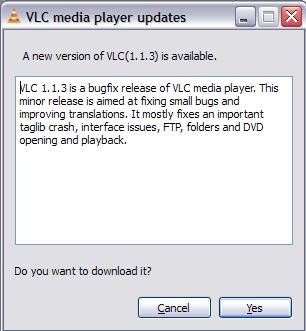
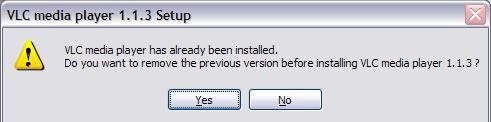
VLC Player got updated to 1.1.3

[tweetmeme source=”mrnitishkumar” only_single=”false”]

Code RED!! Code RED!! Charlie reporting… something just happened.

VLCplayer

I just reported earlier about VLC 1.1.1 (not even a month before) and VLC 1.1.2 (just 15 days back) and we find a new update here. We really love open source projects for this, frequent updates and superb fast big fixes.

And its not only just another open source, but its our most favourite open source product

formats

As you can see, its not some major upgrade, but just a bugfix release , but who cares, I am updating my VLC Player. Aren’t you?

VLC2

And for the brave people out there, there is also a pre-release under development VLC player 1.1.4 version available for download. Developer version means it could have some bugs, so check out on your risk.

photo of Nitish KumarNitish Kumar


Touch and type Nokia X3-02 brings X-Factor to S40

[tweetmeme source=”mrnitishkumar” only_single=”false”]

When it was announcement of Nokia C3, C6 and E5 from Nokia, then out of other things, what made me more curious was the home screens of Nokia C3 and Nokia E5. The favorite contact bar, which we were introduced with Nokia N97 and Nokia 5800 was always denied the share of the same citing memory limits. I always wondered that how much tempting it would be for people to hold their fingers not touching the big contacts picture icons like they did with Nokia N97, X6 and others?

Then there was a debate started from Nokia Conversations over buttons and touch, where I even replied quite many a comments (should have got some clue right then) and when Blackberry launched its torch, then it was obvious to boil up the conversions that when Nokia coming up something like one handed touch with HW-Keypad?

So, here is the day, August 17, 2010, in contrast of expectations of some E6 with QWERTY and touch in shape of E72, Nokia sure given a new innovation to mobile world with a T9 with touch screen and that too in price of just 7.5k and the name was strangely Nokia X3-02 (probably people will call it by name of X3 touch to avoid confusion).

As Nokia says, it takes something so familiar and makes it new again.

The simple but slim looks like old T9 and S40 phones, but with a 3 row keypad rather than usual 4 rows, we grown up using and a very welcome large 2.4 screen like Nokia E52.

Read till the end, I bet you will know many more things about Nokia X3-02, which you don’t know about it at least till this point.

Special features slowly get disclosed in front of your eyes like favorite contacts bar on the home screen (photo calling available) and cool Date and time bar (we will be see in video later). It got dedicated message key, dedicated music key and a rather larger speaker at the bottom and if that’s not enough then it got brushed aluminum body. Not only this, but this only 9.6 mm thick and 78 gm device also got Wi-Fi, 3G, HSDPA Cat9 10.2 Mbps, HSUPA Cat5 2.0 Mbps and a 5 MP Camera and let me mention it again, the price is 7.5k.

When we moved into more details as Nokia’s official forum page says over Nokia X3-02, then its surprising that most of the blog got it wrong or someone correct me, when I say that this might be the first S40 device to support up to 32 GB microSD card.


Till it don’t get right on high end devices, since the announcement C3, C6 and E5, its already clear that Nokia is betting big on cheaper devices now. Sure, the consumers are what on the profit side. First was the very capable, E52 like C5 in around 8k and now another under 8k device feature quad band and 3G.

Let’s go by the features now

Operating System: When we geeks hear about S40 devices, then what pushes us back is lack of multi-tasking like we seen in earlier iPhones. Only bit of multi-tasking here might be music/ radio app running behind.

But with the launch of Nokia X3-02, we also got updated Forum Nokia page about S40 platform, which talk about availability of even gesture related controls now (remember spiral zoom feature on Nokia N900?). Though not big on multi-tasking, but you will get a revamped media player, integration of Facebook and Twitter in contacts and updates on home screen, conversation view within the contacts and also chat featuring MSN, Gtalk, Yahoo and Ovi.

So, even Dumb phones got sexier now.

Design: I read somewhere some Eldar saying that its bullshit that Nokia experimenting with design material and came up with brushed aluminum and I swear nothing could be more bullshit than that line. Brushed aluminum doesn’t only make the build solid but saves it from scratches as well and in the way lengthening the life of the product. NO more scare of breaking it while opening the back cover to remove the batter.

Technically the dimensions are 106.2 x 48.4 x 9.6 mm, 45.2 cc and weight 78 gm, so finally we are getting Nokia making really slim devices and sure you could hope one day they will give something slim like iPhone or Galaxy and that too with all typical Nokia features, not some stripped bluetooth that don’t let you transfer the files between phones over Bluetooth (read Apple).

Like the tradition has began, Nokia started offering their device in many colors (may be on footprint of Dell Studio) and Nokia X3-02 is expected to arrive in Q3 means latest by September 2010 in five colors: White Silver, Petrol Blue, Lilac, Pink and Dark Metal. So, which color would you prefer?

Display: People already not expecting big from a cheap touch and type device that is first of its kind to showcase a 2.4” touch screen. Not on higher side of resolution, it just fare with a 240×320 screen, which has a color depth of 16 bit means 256k colors.

Its a transmissive LCD that would be glossy for sure, but I am not getting mention of its being scratch resistant anywhere, so better be careful about that, they are expecting light touching not gaming kind of.

Camera: Earlier Nokia X3 offered a 3.2 MP camera, but Nokia X3-02, which we call Nokia X3 touch now, is much more generous to offer a 5MP camera. But its not one of the greatest for sure.

As expected, there is no flash, not a single LED. The 5MP has a resolution of 2592 x 1944 and aperture f2.4, but the camera focus range just starts from 50 cm and goes to infinity means nothing like Macro mode. It got 4x digital zoom and Picture format is JPEG only.

But you get video recording that is on 640×480, but got better frame rate of 18 fps, which could record in two formats H.263 and MPEG-4. Not bad for a device in this segment.

Memory: Series 40 device never known much demanding over memory due to non-multi-tasking nature, but still it got adequate specs. Maximum User Storage of 50 MB, NAND Memory of 128 MB and SDRAM Memory on 64 MB. Impressive for a S40.

And while most of the blog seems to mentioning that it supports up to 16 GB microSD card, office specs says it supports up to 32 GB, which makes it first S40 to support 32 GB I guess.

Connectivity: That’s something so so special about this device. People already overwhelmed over its looks and touch, but its bigger underneath. You are getting Quad band support here means GSM 1800, GSM 1900, GSM 850, GSM 900, WCDMA Band I (2100), WCDMA Band II (1900), WCDMA Band V (850), WCDMA Band VIII (900) and much more than average HSDPA Cat9 10.2 Mbps, HSUPA Cat5 2.0 Mbps. Even my Nokia N82 didn’t got such support. Not only this, but you have Wi-Fi (802.11b/g/n) available that supports WEP, WPA, WPA2 (AES/TKIP).

Now hold your breaths, although not advertised, but their official page says that it got USB-OTG 1.3. Is it the same, I am thinking? Nokia N8 has the same OTG profile, so??? Should we be prepared for some upcoming video displaying the same feature? Will they ship the cable together?

I am sure even Geeks could find it an affordable alternative to keep with them as a 3G modem and storage device, isn’t it?

Messaging: With support of around 600 kb size of messages, S40 devices been center of attraction for messaging only and this one sure has no reason to disappoint. You are getting Nokia Messaging 3.0 here and with the integration of twitter/ facebook, you also have the leading IMs in pocket. Social media is in reach of everyone now.

It supports IMAP4, POP3, SMTP, but asking for PUSH will be sure a joke on this price point.

Browsing: If some device supporting connections at a speed of 10 mbps, then browsing capabilities becomes a must. Nokia X3-02 comes with WebKit Open Source Browser and Opera Mini that will support Flash Lite 3.0. So even if not much big expectations, you could find it doing all the tasks at a satisfactory level for sure.

I am yet to see if the browser will support spiral zoom like Nokia N900 here with resistive touch.

Ovi Services: Though things could be region specific, but as much their official page says, it will support not only FOTA, but also Nokia Music Store, Ovi Music, Ovi Store, Ovi Sync, PictBridge, Themes and VoIP.

Isn’t that exciting for a sweet little device?

Battery: No one expected a bigger battery in a S40 device, when such device already known for much better power management due to lack of multi-tasking basically. It has a BL-4S 3.7V 860mAh battery that supports 5.3 hours talk time on 2G and 3.5 hours talk time on 3G. It has a music playback of big 28 hours and video playback of 6 hours. Average for music series, I guess, but there is a great news too.

Nokia X3-02 not only supports regular 2.0mm Charger Connector, but also supports charging over USB.


It will initially be offered in China, Ireland & UK, Russia, Australia & New Zealand, Singapore, Germany, Spain & Portugal, France, Mexico and Saudi & Yemen. Other markets will follow later.

This was all about next coming Nokia X3-02. So, if you were thinking that its about only some specific people, which will say “hurray” when their dumb S40 devices sudden get magic of touch, then think again… isn’t USB-OTG and an up to 10 mbps 3G modem could lure the Geek inside you?

So, this was Layman’s take on Nokia X3-02, what you think, let me know.. I am all ears for you.

Nokia N86 Camera insights – All about it

[tweetmeme source=”mrnitishkumar” only_single=”false”]

My last weekend with Nokia N86 and sure this comes the time, when I should write about the specific thing for what I asked for a trial of Nokia N86. The Camera … I am not saying the 8MP camera only as most of the called it … its much more than just the megapixels. We will see in next why …

But before starting I must tell you that all these stuff are purely tech and will be of more concern for people knowing a thing or two about camera technology …

What a Bad Ass Nokia N86 camera is?


The Lens: Everyone talk about Megapixels and says that what if your N82 has 5 MP, mine has higher, what’s the difference? Dude! Its just not about Mega Pixels. But lets start from that ..

Mega Pixels 8 MP means 8 millions of pixels in one particular pics that makes the resolution of 3264×2448 (=79,90,272), but beyond that there is Carl Zeiss; the most renowned name among the lens manufacturers and the Tessar Lens.

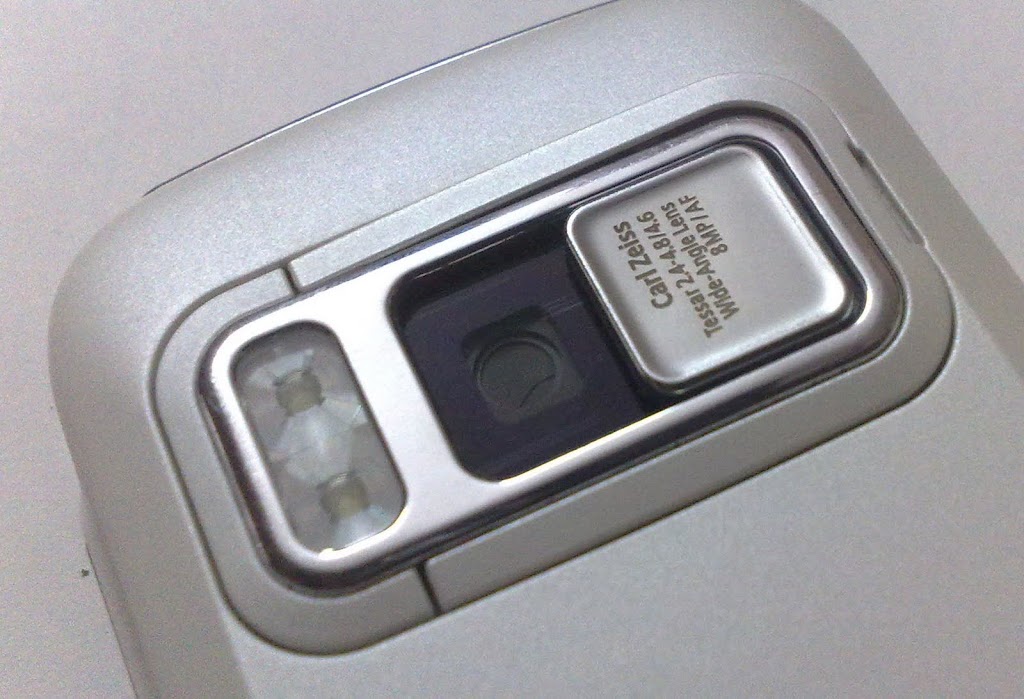
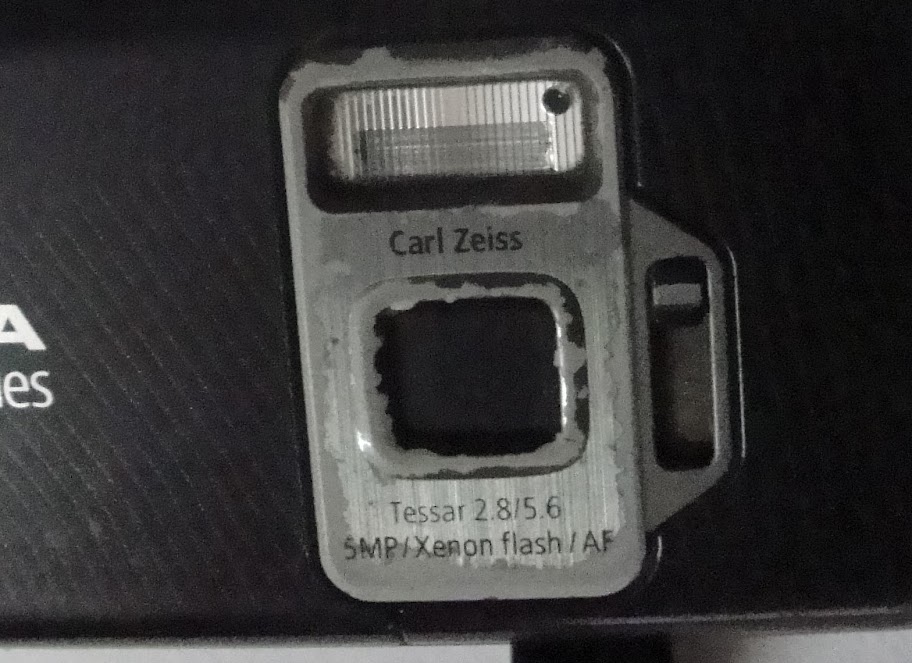
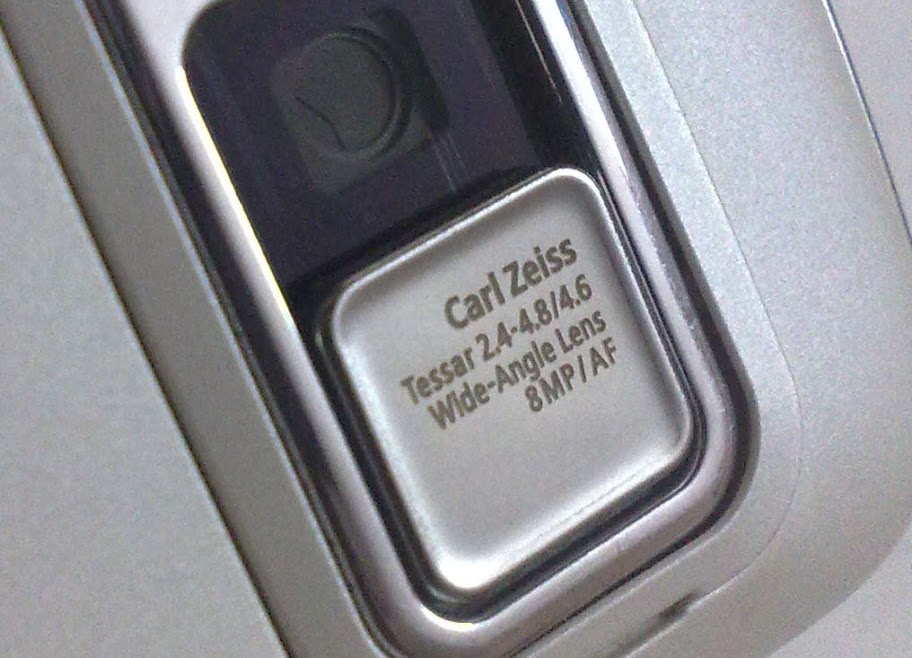
Aperture You can notice the changes in my Nokia N82 Tessar and Nokia N86 Tessar … Nokia N82 had Tessar 2.8/5.6 while Nokia N86 got Tessar 2.4-4.8/4.6. Sorry about the condition of my Nokia N82, but its more than 2 and half year old now and has seen lots of things.

What these numbers mean? Its about aperture, the opening that allows the light to pass in. Larger aperture means better performance for low light conditions and lower means better in illuminated environment. It actually says that Nokia N86 has a variable aperture, while Nokia N82 has only one setting F2.8, Nokia N86 boosts on three options F2.4, F3.2 and F4.8 as their specification page says.

Not only me, but many other people trying to find that where are the settings to control the aperture manually, but it seems that they decided to keep it automatically controlled only (after all they were making phones not DSLR).

Wide angle Do you know that Nokia N86 was the first phone ever to offer a 28mm wide angle lens? As the GSMArena link says, it offers your around 20% more larger view angle means you could expect much better landscape and scenery shots now. Wide angle lens get lower focal lengths that reflects in numbers (4.8mm which was 5.6mm in Nokia N82).


Mechanical aspects: 

Shutter speed When you talk about taking instant pics and get irritated of blurs then you must be actually talking about the term shutter speed. Not exactly sure that how much it was in Nokia N82, but Nokia N86 sure has a high shutter speed that could go max up to 1/1000 secs, sure you can’t drop your eyelids faster than this 😉

Camera Cover Nokia N86 got Slide Lens Cover for Protection & Camera Activation and the difference in mechanism could be spotted in the above pics. Sure its way smoother than we seen in Nokia N82. Good news.

Dual LED Flash Technically they call it Third generation of Dual LED Flash and even if many might be pissed off over Nokia for dumping Xenon over LED flash, it had its part of sense. LED is more favorable for phones due to lower power consumptions and size and for the consumer side, the profit is video light. Let me show you two videos: one with Video Light and one without video light.


I am sure you could spot the difference.


But adding to the conversation of Xenon Vs LED, I would also like to show you the difference of color re-production with a LED Flash and a Xenon Flash.. or may be its feature check out


And as AAS pointed out, Xenon also do well about freezing the objects at the moment better than LED. Check out their post for sure, though my results are opposite about illumination where N86 is better and natural.

Though I am still trying to find the way to use LED as a torch without any software, just from some hotkey like it was in Nokia E72. Anyone got anything?

Dedicated Camera Key Yes!! with Nokia N86, we got the camera keys again. After using Nokia E72, I really felt that how important it is to have a dedicated camera key and that should be well built too. After years of using Nokia N82, I really found the metallic camera keys of Nokia N86 a superb and solid upgrade over Nokia N82.


Software aspects:

Well! Living with similar software world for years spoils you this much that in first sight every symbian looks same to you and you think that things not moving. May be even I might have thought so, when first seen the interfaces, looked similar, familiar.. but it was to take a few days, when it started revealing that how much improved things have became with special focus over Camera improvements.. and its about each and everything.

Speedy processor makes processing of photos after shooting them like instant. Panorama mode was never like this much smooth. Everything feels like the way it should be even if symbian interfaces feel older than we might have seen in Maemo or other OS’s, but they work and they work superb.

Unfortunately, I lost the part of post, I was writing over software aspects… writing it again ..

Starting from the settings, there are the usual options available…

Menu –> Tools –> Settings –> Applications –> Camera –> Image

Menu –> Tools –> Settings –> Applications –> Camera –> Video

Even more details about the quality ..

After that we get around ten options, when we customize the toolbar displayed on right of the screen, when we open the camera …


Camera view is the old one, but one could notice the details

The left bottom side has the battery icon and then quality icon next to that (showing 8M means 8MP now), in next to that its the count of remaining photos that could be snapped with current remaining free space, I am not exactly sure about the icon next to that, but that’s probably says the same the remaining space.. the last icon is GPS one. If its not showing x then it means that location is locked and you are ready to go with GPS info tagged inside the pics.

As told by one of my friend on twitter, I noticed a probably bug in Nokia N86. After taking an image with GPS info on, even when you close down the camera, you find a GPS icon on the right top of your phone screen, when nothing is using GPS right then. Not sure what it is..

I find myself specially hooked up with panorama mode of Nokia N86. Its nothing that we haven’t seen it earlier, but it never seem to be this much smooth and perfect in any earlier camera. Earlier only right and left key, now have became four ways. The speed of processing makes it instant to move on after it takes one shot and the results..

Though things get changed with moving object and situations a little, but its sure not a fault of Nokia N86.


Image editing options are like they were always… very basic.. same contrast, brightness, frames etc..

But what’s the big deal here is the basic video editing options..

So.. what you say… wow!!!


Do you know what impressed me about Nokia N86 most? It was the macro mode performance of wide angle lens. Its just not the pixels, but see the finer details in next few random samples I took in my office…


So, what’s say? Do you still believe that there was nothing in this world better than Nokia N82?

Digg This

Nokia N86-New Customization Options

[tweetmeme source=”mrnitishkumar” only_single=”false”]

When I took Nokia N86 in hands then it seems just the same software wise as I have seen with Nokia N82 or any other Symbian OS v9.3, S60, but this time it was rel 3.2. Let’s see what made me excited about it.

When taken the first look, it was like any other non-touch home screen, I would have seen. Same vertical top configurable icons on standby and then a list of services like Chat, Mail, Calendar, Sharing .. just the same, we are so used to see in other Nokia Smartphones series …

In the first look, it was just the flash based screen saver that was new and good thing to me about Nokia N86 (though thanks to my twitter friend, I got the same on my Nokia N82 as well) and really made me realized that I should have explored my Nokia N82 much more.

But the magic begins, when I went more inside, inside the customizations .. ..

Even the themes option was much more richer and cooler than Nokia N82 or Nokia E52. There were plenty of options for standby itself in terms of four standby themes and sure vertical Icon bar became my choice and still the same.

I seriously looked back in Nokia N82 and Nokia E52 that are with me, but these were sure new options that I seen and now I wonder if there was something such in E72 or other devices that I have gone through. Don’t remember that anything such was anywhere. Why I am so happy about it? See yourself the new look of the screen, just after the vertical icon bar standby screen.

I really wonder that if Vertical Standby screen is a much better idea than the traditional horizontal ones.


Not only standby themes were new, but even our Menu view got some new options ..

May be most of the people are happy with grid and list views only, but what about these two new options?


Call Image option works in both ways, either you call or receive and there is more of it, you can even set a video as your ringtone for some particular person. Isn’t it cool?

Video Ringtone Call Image


Loads of event options: You can set tones for many things here like when the battery is charging, when battery is empty and like that ..

Not just that but the theme options extends to much more …

Here is what kind of Audio theme you want to choose for whole phone use experience …

This is where you define that what background your phone will carry, while calling someone. ..

This is the place where you choose.. you can check the left pics of N82 that how much more options are here now ..

Sure, the animated Time screen is my favorite, but many might have liked Slideshow more, though I still think that if someone was using the Music player option as ‘power saver’ 😉

Even the kickstand that seems to be a new showoff for probably the biggest non-touch screen, have plenty of options to configure about.

And it found the lovely feature that was not available in the times of my Nokia N82.. the over the air update ..  though mine has already the latest one. I love to get updates myself 😦 don’t you?

I used video calling as well, with my youngest brother on the other side using E52 and same complaint.. why can’t Nokia start using more than just VGA for front cameras? I mean I understand that better pixels will ask for more data, but you can make that vary from settings.. at least people who have better data plans, wont complaint .. yourself check how the pics might look like in low light conditions..

Yeah!! you are fully allowed to use the pics above for scaring your kids .. he he he

Obviously, it inherits Full Quick Office and PDF reader from Nokia N82 .. and Zip too.

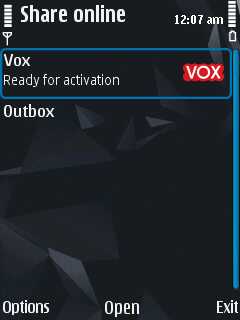
What I wish more for.. if Nokia  starts adding popular services like Flicker, Picasa, Facebook etc in their list of Share Online services by default.


Lots to say about … but how could I have left the mention of FM transmitter even if it has a very simple interface …

The camera interface wont be covered all in this post itself, but keeping it short.. it adds much expected Panorama mode

I really really think that if Android or iOS has something like this panorama mode… just see what results it could obtain from even a newbie …

Options for customizing the much richer toolbar now…

It also adds geo-tagging, though I was just surprised to see record location option in my Nokia N82 as well. Just for that purpose, I installed Location Tagger from Nokia Beta Labs, is that brings Record Location in or it was the last firmware update? Anybody?

If you think that these were the minor updates then one more feature is here .. Face Detection

For people finding about the most important feature of Nokia N86 camera .. the variable aperture… check out the exposure setting thing..

So, anything I missed that is new in Nokia N86? Sure tell me… I wanna know…